%20-%20120%20x%2044.svg)
The Duplicate Appointment feature allows you to easily copy an existing appointment, creating a new appointment with all the details from the original one. This feature is designed to streamline the process of booking follow-up or repeat appointments by carrying over all relevant information while providing the option to update the date and start time.
In this article:
- How to Duplicate an Appointment
- What Details are Copied?
- Invoice Handling
- Conflict Detection
- Related Articles
You can duplicate any existing Client, Personal, or Group appointment directly from the calendar.
Here’s how:
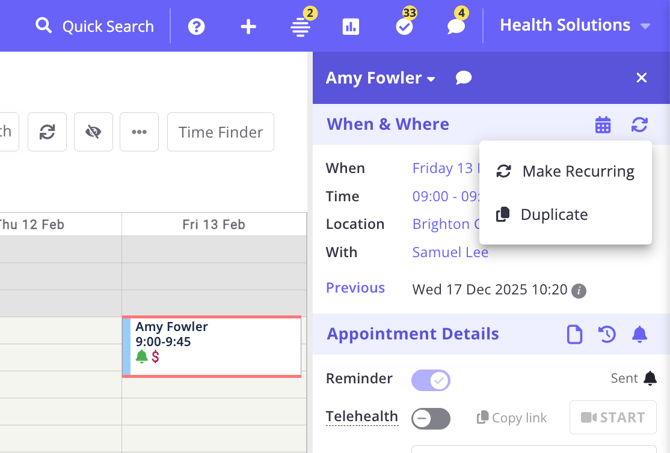
- Open an appointment to view its details panel.
- Locate the When & Where section header.
- Click the Recurring Options icon (indicated by a sync/refresh symbol).
- Select "Duplicate" from the dropdown menu.
- A Duplicate Appointment modal will appear.
- Select a New Date for the appointment.
- Select a new Start Time (Hour and Minute).
- The time format of the time picker (24 hour clock or AM/PM) is configured in each Zanda account in User Profile > Account Settings > Practice > Business Info.
- The system automatically calculates the end time based on the duration of the original appointment.
- Click Confirm to create the new appointment.
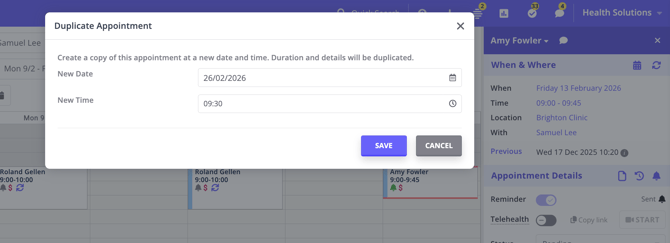
Upon confirmation, the system creates the new appointment and will inform you if the duplication was successful or if there are any scheduling clashes.
💡Pro Tips:
- Please note that the Duplicate Appointment feature is not available from the appointment context menu you access by right-clicking an appointment block in the calendar view.
- Check your comments! Appointment Comments (like "patient is running late") will be copied to the new appointment. Be sure to clear or update these if they don't apply to the new booking.
The duplication process copies key details to ensure the new appointment matches the original purpose:
- Appointment Type: Preserves the type (e.g., Client Appointment, Personal Appointment, Group Appointment).
- Participants: All clients and participants associated with the appointment are copied.
- Appointment Comments: Any notes in the comments field are copied.
- Resources: Any rooms or equipment reserved for the original appointment are also reserved for the new one (subject to availability).
- Telehealth Details: New Telehealth room configurations are generated for the new appointment automatically.
- Duration: The length of the appointment remains the same.
The system includes intelligent invoice handling to save you time:
- Service Copying: If the original appointment includes services or products, these are copied to the new appointment.
- Automatic Invoice Creation: The system automatically generates a new invoice for the duplicated appointment using the copied items. If the original appointment did not have an associated invoice, no invoice will be created for the duplicated appointment.
- Group Appointments: For group appointments, invoices are handled for each participant appropriately, ensuring everyone is billed correctly.
To prevent double-booking, the system checks for availability when you select a new time:
- Clash Warning: If the new appointment overlaps with existing bookings, the appointment is still created and saved, but you will be presented with a "clash" warning message detailing the conflict time.
- Resource Availability: If copied resources (like a specific room or equipment) are not available at the new time, you will be notified so you can make adjustments.
- Creating, Editing and Deleting a Client Appointment - Learn the basics of appointment management.
- Creating and Managing Personal Appointments - Block out time for meetings and breaks.
- Creating, Editing and Managing Group Appointments - Manage multiple clients in one session.
- Creating, Editing and Deleting Recurring Appointments - Understand how recurring appointments work.
- Creating, Editing, Printing and Emailing Invoices - Learn how invoices are generated and managed.