%20-%20120%20x%2044.svg)
Zanda can automatically include all the required information on invoices to ensure they comply with Medicare requirements. Information that can be automatically added includes your Provider Number, the referrer's details and Provider Number, the referral date, and the Medicare Item Number of the service you provided.
( Want to connect directly with Medicare to process online claims? Learn how to get set up here - it is completely free!)
Important
You must fill out your HW027 form to register for Online Claiming. If you or any providers that submit claims through your account have not filled out this form previously please do so immediately. Details on how to fill out the form and submit it to Medicare can be found here. Please keep Question 3 on the form blank.
In this article:
- Adding your Medicare Provider Number
- Adding your Medicare Related Services
- Adding Your Referral Sources
- Adding the Referral Information to a Client's Profile
- Processing an Appointment and Generating a Medicare Compliant Invoice/Receipt
- Frequently Asked Questions
- Related Articles
Adding your Medicare Provider Number
- First to ensure your account has Medicare available as an insurance option go to User Menu > Account Settings > Payments > Insurers. If Medicare is not on the list, you can add it by clicking on +Add Insurer
- To automatically include your Medicare Provider Number on all your invoices you generate, navigate to User Menu > Account Settings > Team > Practitioners, and then add your provider number details under the Insurers section (more details on adding your provider number can be found here).
Adding your Medicare Related Services
Setup the services you provide ensuring you include a description of any Medicare Service / Item Number details.
- To do this go to User Menu > Account Settings > Billing > Services and select Add Service.
- In the Name or Description sections include the Medicare item description e.g. "Standard Consultation 50min+" and in the Item Number / Code section add the Medicare item code (such as 80110).
- You can create separate service templates for Bulk Bill, Private, and DVA with their respective set prices,
- Or have one generic service template with a set price that can be adjusted at the invoice level, if you do not wish to maintain multiple service templates for the same service.
- You only have to set up your services once and then they appear in a drop-down list for you to select for any client you see.
Adding Your Referral Sources
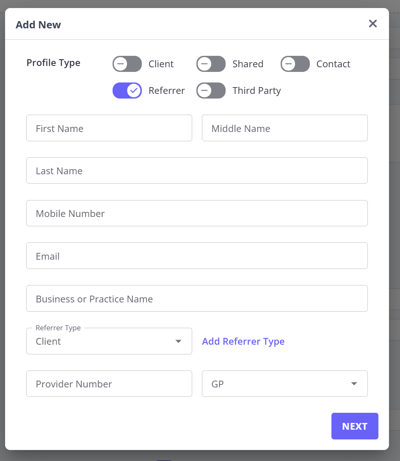
Add your referral sources e.g. GPs who refer to you. To do this
- go to People > Add and toggle the Referrer switch.
- Alternatively, you can click the ➕ icon on the top bar and select Client, then enable the Referrer switch to create a referrer profile.
- Add the referrer's basic details and click ✓ Next.
- You can then enter their Medicare provider number and referrer type (such as GP). Click ✓ Save Changes.
- You only have to add referrer once. Once added they will appear in a Referrers drop-down list in the system so that you can easily link them to any clients they refer.
Adding the Referral Information to a Client's Profile
- Go to the client's profile and into the Referrals tab.
- Click + New Referral and then search for the referrers name (you can also add new referrers at this step).
- You can then add the start and end date of the referral, or select a duration and add any notes for the referral.
- Ensure that Show Referral on Invoice Print option is ticked so that the referral details appear on the client's invoice.
- If Default Referral for New Invoices is ticked this referral will be linked to all new invoices for the client.
Processing an Appointment and Generating a Medicare Compliant Invoice/Receipt
- Anytime the client has an appointment with you simply click on the appointment in the calendar, select the Medicare service you provided, select the payment method they used (if any) and then click Save.
- To print or preview the invoice click Invoice > Print Invoice your invoice will be generated and will include all the required Medicare information.
💡Pro Tip: You can also right-click an appointment and select Print Invoice or Edit Invoice to quickly print or access the edit invoice page for that appointment.
Frequently Asked Questions
One of our practitioners is now a clinical psychologist. How do I update Medicare rebates and bulk billing?
Set up the new clinical psychology Medicare item numbers as Zanda services, then use those services on the practitioner's appointments and invoices. In User Menu > Account Settings > Billing > Services, create separate service templates for the clinical psychology item numbers, enter each MBS item number in Item Number / Code, and set the Price to the fee you want to charge for that service. For bulk bill claims, use the relevant Bulk Bill service template and charge amount; Zanda sends the invoice item's code and charge amount with the Medicare claim, and Medicare returns the assessed benefit in the processing report. If Medicare has issued a new or location-specific provider number for the practitioner, update it in User Menu > Account Settings > Team > Practitioners > Insurers before submitting claims.
How do I prepare a Medicare invoice for a client to claim themselves?
Use the same Medicare invoice setup steps above, then check the invoice before you print or email it:
-
Confirm Medicare is selected as the client's insurer.
-
Confirm the appointment Location is correct. If the practitioner has different Medicare provider numbers for different locations, Zanda uses the appointment location to choose the provider number. For invoices that are not linked to an appointment, Zanda uses the location selected on the invoice.
-
Confirm the service item has the correct Medicare item number in the Code field. You can set this on the service in User Menu > Account Settings > Billing > Services, or edit the Code field directly on the invoice item line when needed.
-
Confirm the client's referral is linked to the invoice and that Show Referral on Invoice Print is selected on the referral.
-
Print or email the invoice so the client has the provider number, referral details, appointment details, item code, and charge amount.
Can I add Medicare-specific footer text without changing every invoice?
Not as an insurer-specific footer. Custom Text for Invoice Footer is an account-level invoice setting, so saved footer text appears when invoices are printed or emailed. Use it only when the same wording is suitable for all invoices.
If you need text that appears only in a narrower context, use the closest matching invoice text field instead: practitioner Custom Invoice Text, location Extra Invoice Text, or client Extra Invoice Info. The insurer Text on Invoice field is different: it controls the label shown next to the treating clinician's provider number, such as "Medicare Provider Number", when insurer details are shown on the invoice.
Can an invoice show what the client paid and what Medicare refunded?
For Medicare Patient Claims, record the client's payment on the invoice before submitting the claim. Zanda uses the claimant's bank details on the Medicare claim when the account is fully paid, and Medicare pays the rebate to the claimant.
The printed invoice or receipt shows the payments recorded in Zanda and the total paid on the invoice. For Medicare Patient Claims, the Medicare rebate is paid by Medicare to the claimant, so it is not shown as a separate Medicare payment on the invoice.
If your client needs to claim the gap — their out-of-pocket amount — from a secondary or private insurer, the invoice or receipt from Zanda already documents the full fee charged and the total the client paid, which is the evidence of their out-of-pocket cost. Because Medicare pays the rebate directly to the claimant on a Patient Claim, the rebate amount is not on the Zanda invoice. Your client obtains evidence of their rebate from their Medicare Benefit Statement, which they can access through their Medicare online account (via myGov) or the Express Plus Medicare app. They can then provide the Zanda invoice or receipt together with that statement to their secondary insurer.
For Bulk Bill and DVA claims, use the Tools > Medicare payment reports to review the amount Medicare paid, the run number, and whether the payment has been allocated to the invoice.
Which email template is used when I email a Medicare invoice versus a Medicare claim?
They use different templates. Emailing an invoice or receipt uses your Invoice or Receipt Email Template. Emailing a submitted Medicare claim (Patient Claim, Bulk Bill, or DVA) is separate and uses the dedicated Medicare Email Template, set under User Menu > Account Settings > Billing > Invoices. See Customising Your Invoices/Receipts.
Related Articles
- Your Guide to Medicare and DVA Payment Reports (AU-only) - Learn how to review Medicare and DVA payment reports and allocate payments to invoices.
- Registering for Medicare Online Claiming - Set up Medicare Online Claiming before submitting claims through Zanda.