%20-%20120%20x%2044.svg)
Zanda online forms and notes are equipped with the text editing feature which allows users to enhance the readability and presentation of the text in the multiple lines and information fields in note templates and notes, and information fields in online form templates. In this article, we will help you learn how to use this feature.
In this article:
- Using Text Formatting in Note Templates and Client Notes
- Frequently Asked Questions - Notes
- Using Text Formatting in Form Templates
- Frequently Asked Questions - Forms
- Related Articles
Using Text Formatting in Note Templates and Client Notes
1. Go to 'TOOLS' menu:
2. Select 'Note Templates':
3. Click on the '+ NEW NOTE TEMPLATE' to start creating a new template, or select an existing template to edit
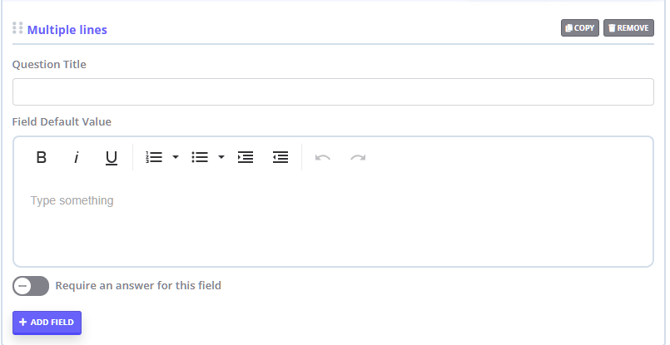
4. Select the 'Text - Multiple Lines' field type if you need to enter an editable piece of text to pre-fill the template
5. Select the 'Information' field type to add a piece of text for the practitioner's information, which cannot be edited when a practitioner is working on a note:
6. Use the available text formatting options (bold, italics, underline, ordered/unordered lists, increase indent and decrease indent and undo/redo buttons) to format the text in the multiple line and information text fields
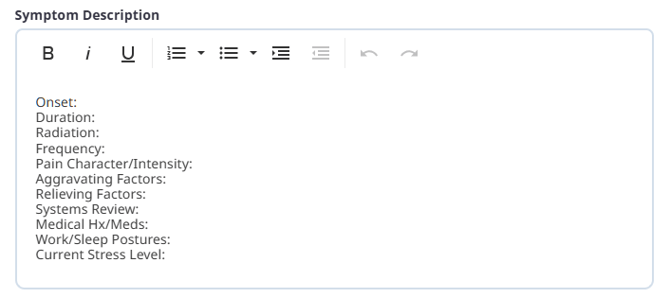
7. Here is an example of these fields in a client's clinical note:
- The information field presents the text that cannot be edited.

- The multiple lines text field is pre-filled and can be edited:
Important Note
- You can copy and paste text from other sources.
- Please beware that if the original source has excessive formatting you can experience difficulties with printing or emailing notes / forms.
- If this happens, please delete the copied text and paste it again as plain text.
- This will allow to keep line spaces and breaks in the pasted text and print the note/form.
Frequently Asked Questions - Notes
❓ Can I change the font family or font size in notes and forms?
No. Notes and forms support a focused set of formatting tools for multiple line and information fields: bold, italics, underline, ordered and unordered lists, increase indent, decrease indent, undo, and redo. Font family and font size controls are available in the broader Zanda text editor used for communication templates, but they are not part of the notes and forms toolbar.
❓ Can I set up shorthand or text expansion so abbreviations autofill in my notes?
No. Zanda notes and forms do not include a shorthand, text-expansion, or autocomplete feature, so typed abbreviations will not automatically expand into longer text. There are several built-in ways to speed up your note-taking instead:
- Pre-filled note templates—add a Text - Multiple Lines field to your note template containing your standard text, and every note created from that template starts pre-filled with it, ready to edit. See Creating a Session Note Template.
- BizzyAI: Scribe and BizzyAI: Refine—let BizzyAI transcribe and summarize your session into a note draft, or ask BizzyAI: Refine to update and reformat your note text. BizzyAI: Refine is available at no extra charge, and BizzyAI: Scribe can be enabled from your Optional Add-Ons settings. See BizzyAI: Scribe & BizzyAI: Refine for Notes.
- Speech to Text—dictate your notes straight into Zanda using your device's speech-to-text function. See Using Speech to Text to Record Session Notes.
❓ Why does text box spacing look different in the template editor than in the saved note or form?
Text spacing can look slightly different because formatted Text - Multiple Lines and Information fields are edited in the template editor, then displayed in the saved note, form, or print view using Zanda note and form formatting. The template editor is the best place to enter and format the content, but it is not a pixel-perfect preview of every saved or printed view.
For the most consistent spacing, paste copied content as plain text, then apply formatting in Zanda. After saving the template, open a test note or form and check the saved or printed version if exact spacing is important.
Using Text Formatting in Form Templates and Client Forms
1. Navigate to Tools > Form Designer and click on the '+ NEW FORM TEMPLATE' to start creating a new template, or select an existing template to edit.
2. Select the 'Information' field type to add a piece of text for the clients' information, which cannot be edited when a client is filling out the form.
3. Enter the information text and use the available editing tools to make parts of the text to stand out for your clients: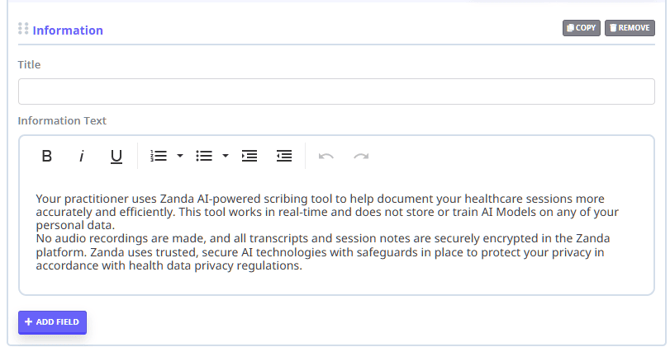
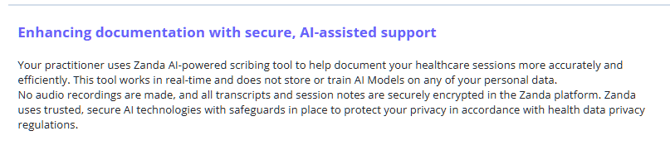
4. This is an example of the information field text as it will present to a client who is filling out the form.
Frequently Asked Questions - Forms
❓ Can I add a clickable link inside a form—for example, a "more information" link that opens another Zanda form?
No. The Information field is for displaying formatted text to your client, and its toolbar offers text emphasis only—bold, italics, underline, ordered and unordered lists, increase and decrease indent, and undo/redo. There is no insert-link tool, so you cannot turn text into a clickable hyperlink, and a website or form address pasted into the field appears as plain, non-clickable text rather than a working link. Zanda does not support linking from one form to another form from within a form's content, so a link added this way will not be responsive when a client fills out the form.
If you need a client to complete more than one form, send or assign each form to them separately so each arrives as its own form to fill out.
Related Articles
- Using the Text Editor - Learn how to use the broader text editor for communication templates, including font family and font size controls.