%20-%20120%20x%2044.svg)
In Zanda, you can keep track of your referrers and referrals. Using referrals allows you to add referring provider details to invoices, report on which referrers are making the most referrals to your business and more.
Before we get started, let’s quickly define the two terms:
Referrer: A referrer is generally a doctor or another health practitioner that has referred a client to your practice or business for treatment.
Referral: A referral is the record of that client being referred to you. These commonly include start and end dates.
Now that that’s clear, let’s see how you can add and edit referrers and referrals in your Zanda account.
Note: If you’re wanting to submit Medicare and DVA claims through Zanda then you’ll be using this system to record referrals for claiming.
In this article:
- Adding a New Referrer
- Referrer Profile in Detail
- Adding a New Referral to a Client’s Profile
- How a Referral Reaches You From an Outside Professional
- When the Referrer or a Funding Body Pays for the Client’s Sessions
- How to Get Reports on Referrers and Referrals
- Frequently Asked Questions
Adding a New Referrer
Here’s how you can create a new referrer profile:
-
Navigate to People > Add using the left-hand menu on Zanda. An Add New popup box will appear.
-
Toggle the Referrer switch. This will add your new contact to your list of referrers.
-
Add their details such as Name, Business or Practice Name and Mobile Number. Also set the System Referrer Type.
-
You can edit the existing list of referrer types or create your own in User Menu > Account Settings > Clients > Referrer Types.
-
Assigning a referrer type to a referrer profile will allow you to filter lists of referrer profiles to send a bulk communication message or bulk update a group of referrer profiles.
-
-
The default dropdown list of Medicare (AU) referrer types is used for the internal reference only and will not be included in any other functionality in Zanda, such as processing Medicare AU and DVA AU claims.
-
After the form is complete, click Next. You will be taken to the new referrer’s profile page.
-
Complete the profile by adding as much relevant information as you can (you can always come back and add or edit this information later if need be).
-
When done, click on the Save Changes button at the bottom-right corner of your screen.
Referrer Profile in Detail
The Referrer Profile is organized in a way similar to the Client Profile. It consists of four sections: Profile, Records, Communication and Admin. Here is a brief overview of each of these sections:
The Profile section includes 3 tabs: Details, Tasks and Referrals Made:
- The Details tab allows you to enter all the personal and business details of the referrer.
- Use the Tasks tab to set up individual tasks for the referrer and assign them to the responsible users.
-
The Referrals Made tab contains the list of all referrals made by this referrer in their lifetime in your Zanda account.
The Records section includes Files and Correspondence tabs.
- The Files tab allows you to upload and organise all the files that were sent to you by this referrer.
-
The Correspondence tab will permanently store all your communication with the referrer (emails, SMS and letters), with a few exceptions, as explained here.
The Communication section is where you can
- see all Communication Activity for this referrer within the past 12 months and
- manually generate and send a new SMS, email or letter with the help of Zanda Communication feature
The Admin section allows you to manage your Referrer Profiles and keep their admin records:
- On the Manage tab you will be able to add new Roles to the profile, reset the Client Portal password if this person is also a client of yours, manage their subscription to marketing communication, make a record of the personal data consent . The following manage options will help you to
Copy to new - if you need to add more referrers from the same organisation, fill out the contact details for the first one, and then copy this profile to new to have the contact details and address added automatically;
Merge Profile - if you created a duplicate profile for the same referrer, you can merge the duplicate into the profile you want to keep. Zanda moves the duplicate profile's records and referrals to the kept profile, then makes the duplicate profile inactive;
Archive - if you no longer work with this referrer, archive their profile so that the data is still saved in the background, but the referrer does not come up in search and reports;
Delete - please beware that when a profile is deleted, you will be granted 48 hours of grace period within which you can restore the profile. After that time it would not be possible to restore it, and all the data will be permanently deleted.
- The Admin Notes tab will help you manage notes made by your admin team. This tab will not be restricted for access by authorised users only.
-
The Admin Files tab is used to upload and organise non-confidential files shared with your practice:
-
The Admin Forms tab is used to send and store online admin forms that help collect information from your referrers:
Adding a New Referral to a Client’s Profile
Here’s how to list a client’s referral on their profile:
-
Open the client’s profile page. (Use the quick search bar to quickly find the client’s profile)
-
Navigate to Profile > Referrals and click on +Add Referral.
-
Complete the form. Start by typing the name of the referrer who has referred this client. If no name appears in the drop-down list, click 'Add a new referrer' and follow the instructions listed in the section above.
-
After selecting the name, add the other details and press the Save button. Your new referral will appear in the Referral List in the client’s profile.
You do not need to set a Referrer up as a Contact to communicate with them from a client’s Communication tab. Once a Referrer has been linked to a client profile via Profile → Referrals, that relationship is automatically connected to the client. From there, when you are sending communications from the client profile, you can simplyc reate the communication from the client’s profile and select referrer email in the To or CC / BCC field and send it directly to the linked Referrer.
If you activated the Default switch on the Referral form, this referral will populate into the client's invoices automatically. To unlink a Referral on an individual Client’s Invoice, go to the Edit Invoice Page for the specific invoice and click on the Referral drop-down list. From there, select "None" or if you need to change referrals, select the referral that you would like to attach to the invoice, and then Save.
How a Referral Reaches You From an Outside Professional
Referrals from GPs, specialists, and organisations arrive the way they always have—by email, letter, fax, or a phone call—and you record them in Zanda. Referring professionals do not log in to your Zanda account, so there is no queue of incoming referrals waiting for you inside Zanda. Here is the workflow end to end:
- The referral arrives from the referring professional, usually as an email or a letter with the client’s details attached.
- Create the client if they are new: People > Add, leave the Client toggle on, and enter their details.
- Create the referrer if this is the first time you have heard from them—see Adding a New Referrer above.
- Record the referral on the client’s profile under Profile > Referrals > +Add Referral, selecting the referrer and entering the referral date and referral period. See Adding a New Referral to a Client’s Profile above.
- Store the referral document by uploading the letter or email attachment to the client’s Records > Files tab, or to the referrer’s Records > Files tab if it relates to the referrer rather than one client.
- Reply to the referrer from the client’s Communication section—once a referrer is linked to a client through Profile > Referrals , you can select their email address in the To or CC field. See Sending Letters to Referrers.
Collecting referral details in a structured form. If you would rather your referrers send you information in a set format than write a free-text email, create an admin form in Tools > Form Designer and send it to the referrer from their profile’s Admin > Admin Forms tab. Each form you send is generated against that referrer’s profile, so create the referrer profile first—there is no single open link you can publish for any professional to fill in.
If the referring organisation is also paying, see When the Referrer or a Funding Body Pays for the Client’s Sessions below.
When the Referrer or a Funding Body Pays for the Client’s Sessions
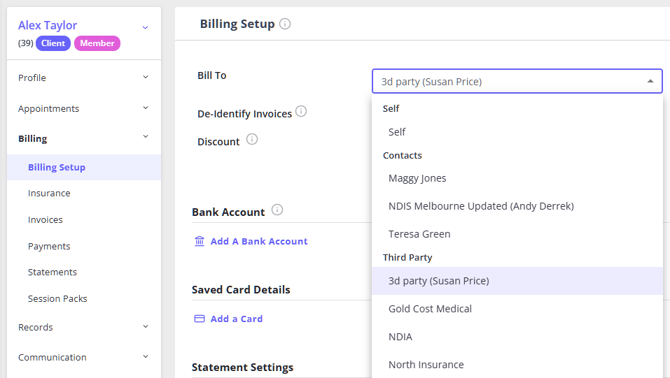
Sometimes the organisation that refers a client—for example a university referring student clients, an employer, or an insurer—is also the one paying for the sessions. In Zanda a referrer records who sent the client to you; it does not by itself change who is billed. To send the invoices to the payer instead of the client, set that payer up as a Third Party and bill to them:
- Create the payer as a Third Party profile. Go to People > Add and toggle the Third Party switch.
- On the client’s profile, go to Billing > Billing Setup and set the Bill To field to that Third Party. From then on the client’s invoices are addressed to, and are the responsibility of, the payer.
Stopping unpaid-invoice reminders from reaching the referred client. Unpaid-invoice reminders from an invoicing automation are sent to whoever the invoice is payable by. Once Bill To points at the Third Party, those reminders follow the invoice to the payer and no longer reach the client. If instead you want to exclude a group of referred clients from a particular reminder automation, you can scope the automation with Client Type or Client Classification conditions—see Setting Up an Invoicing Automation.
Being paid by bank transfer instead of card. Zanda does not let you force or switch off a particular payment method—such as disabling card or Stripe—for one referrer or one client type. What you can do is offer bank transfer as an option: add Bank Transfer as a manual payment method under User Menu > Account Settings > Payments > Payment Methods, give the payer your bank details, and record the payment against the invoice once it arrives. See Managing Payment Methods.
When the client becomes private and the referrer stops paying. Go back to the client’s Billing > Billing Setup and change Bill To back to the client. A confirmation modal appears so you can apply the change to all future-dated invoices, so new invoices bill the client directly from that point on while past invoices stay with the payer.
See also: Invoicing to a Third Party and Understanding Third Party Profiles.
How to Get Reports on Referrers and Referrals
There are three types of reports you can get on your referrals:
- Recent Referrals: This report generates a list of clients referred to your clinic in a specific time period.
- Expired or Soon-To-Be Expired Referrals: This report generates a list of referrals whose referral period is expiring or soon will be in a particular time period.
- Inactive Referrals: This report generates a list of referrers who have not referred a new client within your chosen time period.
Recent Referrals
Here’s how you can generate a list of recent referrals:
-
Go to Reports > System > Recent Referrals.
-
Enter the date range in which you’d like to view your recent referrals.
-
Click Run Report.
This will generate a report showcasing a list of clients referred to you within your chosen period, along with information such as:
- Client Name
- Referrer Name
- Referred On
- Address
- Billed
… and more.
Referrals Expiry Reports
Here’s how you can generate a list of expired or soon-to-be expired referrals:
-
Go to Reports > Clients > Referral Expiry.
-
Enter the date range in which you’d like to view your expired or soon-to-be expired referrals.
-
Click Run Report.
This will generate a report showcasing a list of clients expiring/expired within your chosen period, along with information such as:
- Client Name
- Primary Practitioner
- Referred By
- Expires On
Inactive Referrers Reports
Here’s how you can generate a list of inactive referrers:
-
Go to Reports > System > Inactive Referrers.
-
Enter the date range to report on.
-
Click Run Report.
This will generate a report showcasing a list of inactive referrers within your chosen period, along with information such as:
- Their Practice Name
- Address
- Phone
- Last Referral Date
- Last Client
… and more.
Frequently Asked Questions
❓ Can my referrers log in to Zanda to send referrals and track their clients?
No. Zanda has one portal—the Client Portal—and it is for your clients and their authorised contacts. There is no separate referrer portal, so referring professionals cannot log in to submit a referral, follow a client’s progress, or message your practice through Zanda.
What you can do instead:
- Record every referral yourself as it comes in, so your reporting stays complete—see How a Referral Reaches You From an Outside Professional above.
- Send a referrer an admin form from their profile’s Admin > Admin Forms tab when you want their information in a consistent format.
- Keep the referrer updated with emails and letters from the client’s Communication section, which are stored on the referrer’s Correspondence tab.
- Report on referrer activity with the Recent Referrals, Referral Expiry, and Inactive Referrers reports—see How to Get Reports on Referrers and Referrals above.
❓ Can I manage two concurrent cases for the same client in one profile?
Yes—for most of what makes a case separate, you can keep two or more cases running side by side in a single client profile, without duplicating the client.
- Separate referring providers: Add a referral for each case under Profile > Referrals > +Add Referral , so the client has more than one active referral at the same time—one per case. See Adding a New Referral to a Client's Profile above.
- Separate billing, claim numbers, and insurers: On each invoice, use the Referral drop-down on the Edit Invoice page to attach that invoice to the case it belongs to. The invoice then carries that case's referring provider onto its claim, and each invoice keeps its own claim number and can be billed to a different insurer. Leave the Default switch off your referrals when you want to pick the case per invoice rather than have one populate automatically.
The one thing Zanda does not have is a dedicated "case" or "episode" folder that files clinical notes into separate case sections—notes sit on the client's record and their appointments, not under a case. To keep each case's notes easy to tell apart, use a distinct note template or a clear title for each case, so you can scan or filter them at a glance.
If you would rather keep the two cases completely separate across the whole record, a second client profile is still an option—but for separate referrers, billing, claim numbers, and insurers you do not need one.
❓ Why does the Next button not work when I add a referrer?
When you add a referrer from the Add New window, Next submits the referrer form after the required fields pass validation. Check that First Name and Referrer Type are complete, and that the Email field contains a valid email address if you have entered one.
The Provider Number field, or NPI Number for US practices, is not required to move forward. If Next does not progress, check First Name, Referrer Type, and Email, then select Next again.
❓Why is the referral not showing on the client's invoice?
If the referral is not showing on your client’s invoice, you can manually apply it. To do so go to the Edit Invoice Page for the specific invoice and click on the Referral drop-down list. From there, select the referral that you would like to attach to the invoice. If you choose the referral as Default, then it will be added to new invoices automatically.
❓Where do I record a client's nominated GP for Medicare referrals?
Record the GP as a Referrer, then link that referrer to the client from Profile > Referrals. Add the GP's Medicare provider number to the referrer profile, then enter the referral start date and referral period on the client's referral record.
For Medicare claims, Zanda uses the referral attached to the invoice to populate the referral details on the claim, including the referrer's name, provider number, issue date, and referral period. Turn on the Default switch on the client's referral record when you want that referral to populate on new invoices automatically.
❓How do I merge duplicate referrer profiles?
Open the duplicate referrer profile, then go to Profile > Admin > Manage and click Merge Profile. Search for the referrer profile you want to keep, select it, and review the confirmation message before completing the merge.
Zanda keeps the target profile and moves the duplicate profile's records, referrals, roles, appointments, invoices, payments, files, statements, tasks, notes, messages, packs, waitlist entries, insurer details, and billing links to that profile. The duplicate profile is made inactive after the merge, and the merge cannot be undone.
❓Why is the system unable to save the referrers provider number?
If the provider number is unable to be saved, it may not be meeting the minimum character requirement. In this case, try adding a zero to the front of the provider number. This won't affect claiming.