%20-%20120%20x%2044.svg)
This article includes all the steps to be prepared for claiming. You can enter all your Insurance, Tax, Claiming Code Modifiers and Provider Numbers into Zanda so the correct information can automatically populate for your claims.
In this article:
Preparing for Claiming
Follow the steps below to ensure you have all the appropriate fields filled out so that your claim form can be pre-populated with the relevant information.
- Add your Insurers by navigating to User Menu > Account Settings > Payments > Insurers. Learn more here.
- Update your Tax ID and Practice Billing Information by navigating to User Menu > Account Settings > Practice > Business Info. Learn more here.
- Set the Insured Place of Service for your locations by going to User Menu > Account Settings > Practice > Locations. Learn more here
- Add Tax ID, NPI Number, Taxonomy Code and Claiming Code Modifiers for your Practitioners. Go to User Menu > Account Settings > Team > Practitioners, click on each Practitioner in turn and enter their details. Learn more here.
- Add Service CPT codes and Claiming Code Modifiers by going to User Menu > Account Settings > Billing > Services. Learn more here.
- 6. Add Product CPT codes and Claiming Code Modifiers by going to User Menu > Account Settings > Billing > Products. Learn more here.
Reviewing your Invoice for Claiming
Zanda will pre-populate your claim record with the relevant information as filled in on the client invoice. Update these fields on your client invoice to ensure that the correct information is added to your claim:
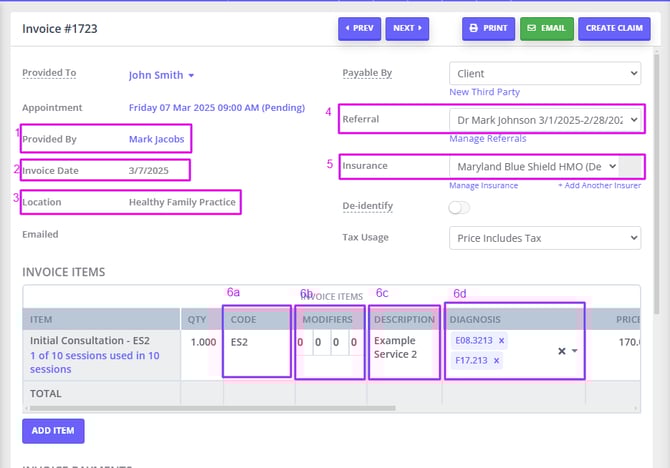
- Provided by/Sold by - The relevant Service Provider
- Invoice date - The date of service
- Location - The place of service
- Referral - The relevant referral source
- Insurance - The relevant payee from the client’s insurance
- Invoice Items
- Code - The CPT code for claiming
- Modifiers - Claiming code modifiers. You can set them in Practitioner profiles, service templates and product templates, and they will populate on invoices automatically. The practitioners modifiers take preference over the modifiers for the service/product.
- Description - The service description
- Diagnosis - Select the relevant diagnoses in the order of most relevant
Payable By and your claim
The Payable By field on an invoice sets who pays that invoice. It does not populate any field on the claim form.
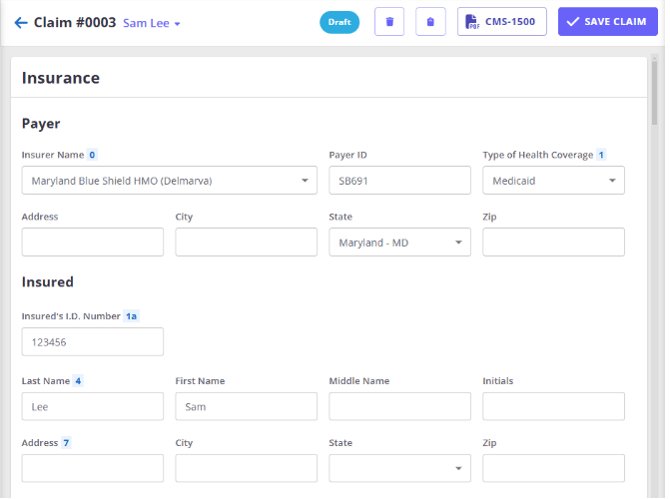
Your claim's Payer and Insured details come from the Insurance field on the invoice. That insurance is drawn from the client's own insurance records (Client Profile > Billing > Insurance), and the payer's Name, Payer ID, and Address come from the insurer you set up under User Menu > Account Settings > Payments > Insurers.
So when you claim to an insurance company, add that company as an Insurer and attach it to the client's insurance. Learn more here. If you set the company up as a third party and select it in Payable By instead, the invoice has no insurance linked to it, so the claim is still created but reaches you with no Payer or Insured details filled in.
Use Payable By on an invoice when someone other than the client pays that invoice directly, such as an employer or another organization paying on the client's behalf. To make that the default for a client, set Bill To on the client's Billing > Billing Setup. Changing either one changes who the invoice is addressed to, and the claim is unaffected. Learn more here.
When more than one insurance is linked to the invoice, Zanda uses the client's primary insurance for the claim's Payer and Insured, then the secondary, then any others.
If the invoice does have insurance linked but none of it is active and effective on the invoice date, the claim is not created at all and you will see an error instead. Check the client's insurance records and their effective dates, then prepare the claim again.
❓ Do modifiers appear on the client's invoice PDF?
No, currently modifiers are only visible on the screen within Zanda and on the US Claim Form (CMS-1500). They are not included on the standard printable invoice PDF.
❓ How many modifiers can I add?
You can add up to 4 modifiers per line item. Each modifier can be up to 2 alphanumeric characters long.