%20-%20120%20x%2044.svg)
In addition to the automatic appointment reminders, you can also send appointment reminders manually whenever you need.
By default, SMS and Email reminder templates will already be selected in User Menu > Account Settings > Communication > Reminders, but you can change these if desired.
Important
A dedicated Toll-Free Number (TFN) is required to send/receive SMS messages in the USA, Canada, Puerto Rico, Bahamas, Jamaica, Costa Rica, and Barbados. For more details, please click here.
In this article:
- Sending Manual Reminder from the Appointment Context Menu
- Sending Manual Reminder from the Appointment Panel
- Frequently Asked Questions
- Related Articles
Sending Manual Reminder from the Appointment Context Menu
- Go to the main Appointments screen (Hint: clicking the Zanda logo will get you there.)
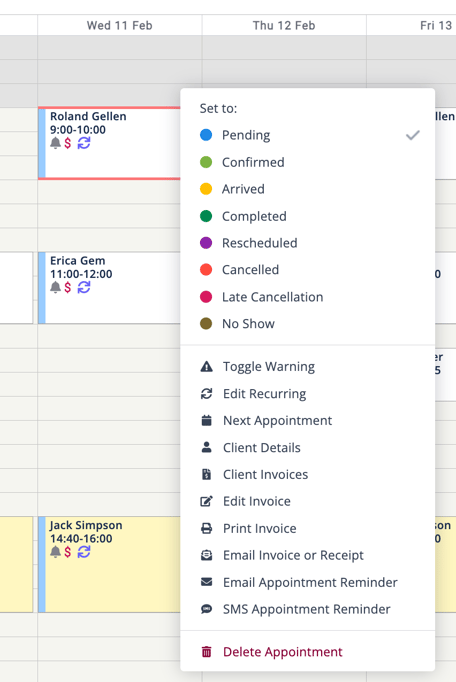
- Locate the appointment for which you wish to send a reminder, then right-click on it.
- In the pop-up menu, click on either Email Appointment Reminder or SMS Appointment Reminder to manually send the reminder to your client.
Sending Manuals Reminder from the Appointment Panel
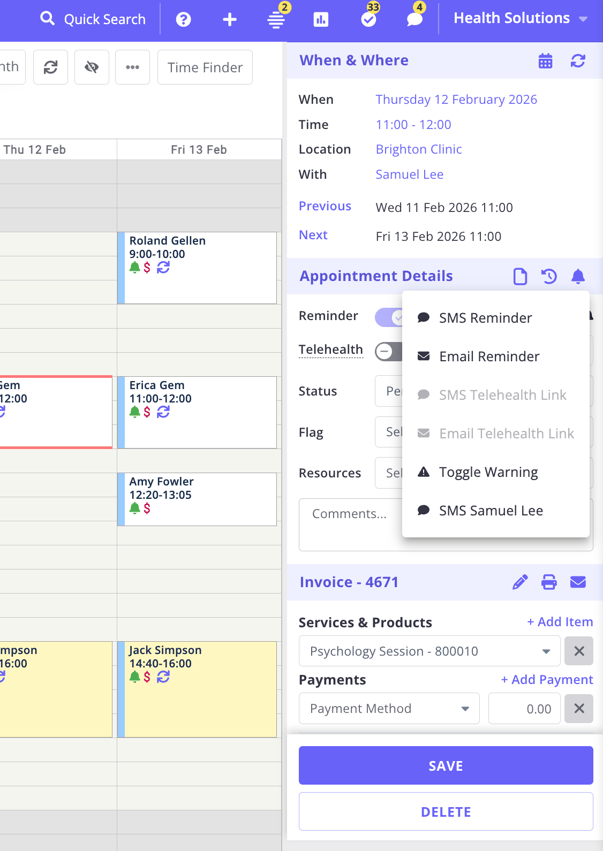
1. Go to the main appointments screen, locate the appointment and left-click on it once to open its Appointment Panel on the right-hand side.
2. Click on the Notify Now (the white bell icon next to the Appointment Details), select either SMS Reminder or Email Reminder:
Note: Add the client's the phone number and email address to their Zanda profile before sending SMS or email appointment reminders.
Frequently Asked Questions
❓ Will an automatic reminder go out if I sent the reminder for the same appointment manually?
The automatic reminder will still be sent as scheduled, even if you have manually sent a reminder for the same appointment. To prevent this, disable the automatic reminder in the appointment panel after sending the reminder manually and save your changes.
❓ Can I send an appointment reminder SMS from the Messaging Panel?
An SMS sent from the Messaging Panel on the right-hand side is not linked with an appointment and the system will not automatically confirm or cancel an appointment.
❓ Which template is used when I send a reminder from the Notify Now bell?
When you select SMS Reminder or Email Reminder from the Notify Now bell, Zanda uses the SMS or email reminder template selected in User Menu > Account Settings > Communication > Reminders. You can edit those templates from the same settings page.
If the appointment is a telehealth appointment, the Notify Now menu may also show SMS Telehealth Link and Email Telehealth Link. These options send the built-in telehealth link message for the appointment. To send your own wording and include the telehealth link in an editable reminder template, use SMS Reminder or Email Reminder and add the {ClientTelehealthUrl} merge field to the selected appointment reminder template.
Related Articles
- Creating and Managing Email, SMS and Letter Templates - Create and edit reusable communication templates.
- Available Merge Fields for Communication Templates - Review appointment and telehealth merge fields.
- Setting Up a Pre-Appointment Automation - Send automated appointment preparation messages before appointments.