%20-%20120%20x%2044.svg)
The Quick Actions menu (accessed via the ➕ icon at the top panel) allows you to perform common actions—like creating appointments, adding clients, or starting session notes—without navigating away from your current work.
In this article:
- Start Using Quick Actions
- Creating an Appointment
- Adding a Client
- Creating a Note
- Creating a Form
- Creating an Invoice
- Creating a Payment
- Related Articles
Locate the ➕ icon in the top bar (header) of your Zanda dashboard.
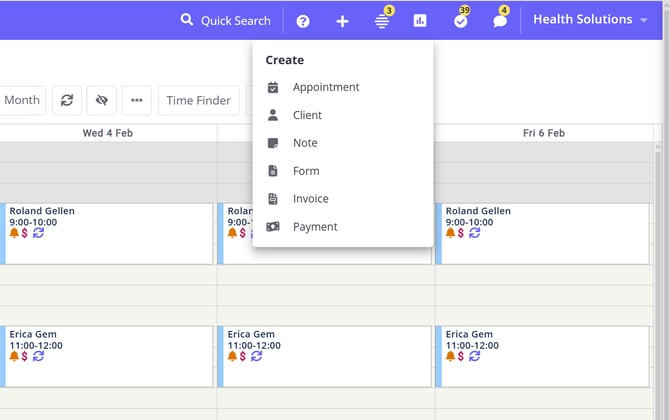
Clicking the ➕ icon opens the Quick Actions menu, giving you instant access to creating:
- Appointment: Book a new appointment.
- Client: Add a new client profile (adding other profile types is also available).
- Note: Create a session note (clinical type).
- Form: Start a new online form (clinical type).
- Invoice: Generate a new client invoice.
- Payment: Record a client or a third party payment.
💡 Note: To use these features, you must have the "Can Add and Search Clients" and/or 'Access all Referrer and Third Party Profiles' permissions enabled for your user settings. The profile search results in these menus will only show profiles you are permitted to see.
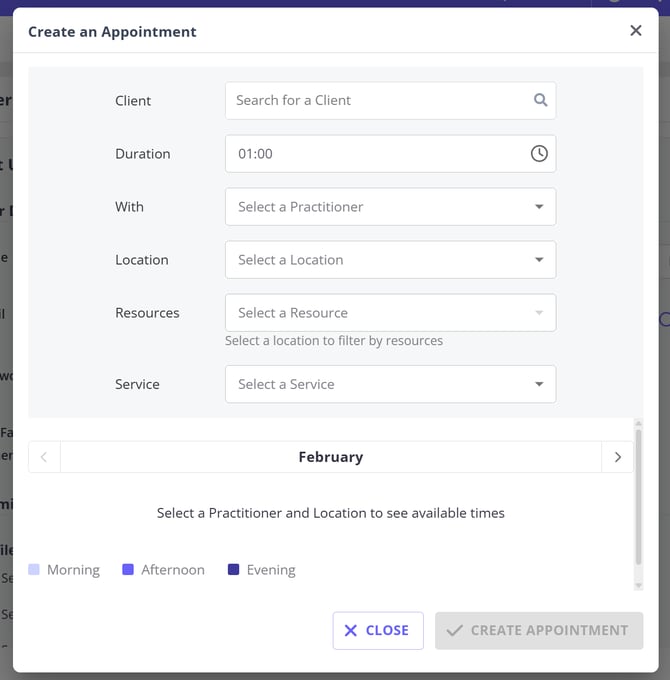
The Create an Appointment modal allows you to book an appointment without leaving your current page.
- Click the ➕ icon in the app bar.
- Select Appointment.
- In the Create an Appointment modal, fill in the details:
- Client: Search for the client.
- Duration: Select the length (default is 1 hour).
- With: Choose the practitioner (active practitioners only).
- Location: Select the location (active locations only).
- Resources: (Optional) Select resources, filtered by the chosen location.
- Service: Select from active services.
- Once a location is selected, the calendar view will appear to help you pick an available time slot.
- Click Create Appointment.
- The appointment panel will open on the side, with the selected details already filled in. Use the available panel fields to complete the appointment booking.
💡 Notes:
-
The Create Appointment button will remain disabled until all required fields are filled and a valid time slot is selected.
-
If the selected Service duration is longer than the appointment Duration you chose, the button will also remain disabled.
You can quickly add a new client profile to your Zanda account from anywhere.
- Click the ➕ icon in the app bar.
- Select Client.
- The Add New Client modal will appear (this is the same form used in People > Add).
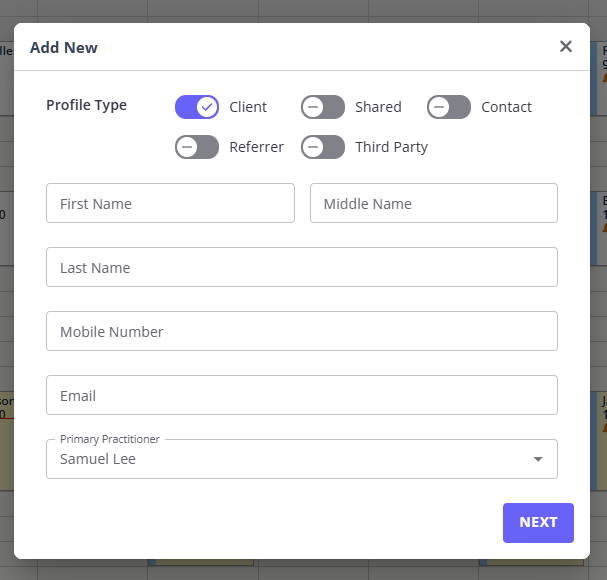
- Enter the required client details and click Next.
💡 Tip: You can also select a toggle to create another type of profile, for example, Contact, Shared Profile, Third Party, etc.
On a successful save, the modal closes, and you are moved to the new profile Details page. The new profile is immediately available in client search fields.
To quickly start a note for a client:
- Click the ➕ icon in the app bar.
- Select Note.
- In the Create a Note modal, search for and select the client.
- Click Continue.
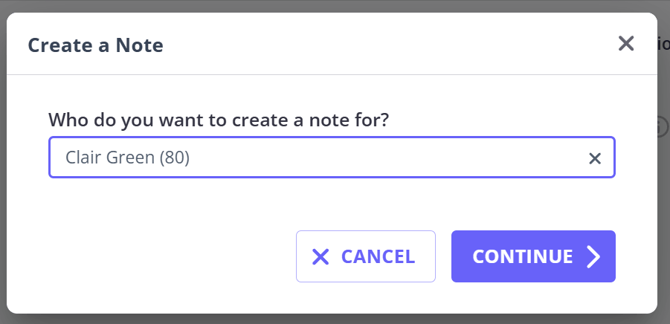
You will be redirected to the Records > Notes page for that client to select a template and complete your note.
To create a new form for a client:
- Click the ➕ icon in the app bar.
- Select Form.
- In the Create a Form modal, search for and select the client.
- Click Continue.
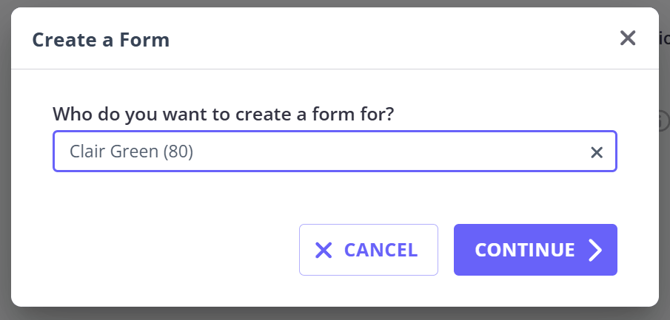
You will be redirected to the New Form page (Client > Records > Forms) for that client, where you'll be able to select a form template and create a form draft.
To generate a new invoice:
-
Click the ➕ icon in the app bar.
-
Select Invoice.
-
In the Create an Invoice modal, search for and select the client.
💡 Tip: You can search for and select both Client and Shared Profiles here.
-
Click Continue.
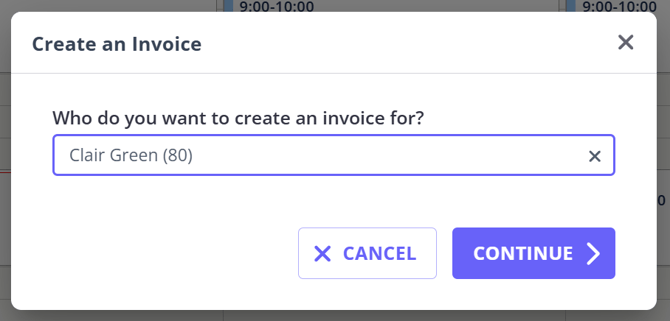
You will be redirected to the Billing > Invoices > New Invoice page for that client.
To record a payment:
-
Click the ➕ icon in the app bar.
-
Select Payment.
-
In the Create a Payment modal, search for and select the client.
💡 Tip: You can search for and select Client, Shared, Third Party profiles here.
-
Click Continue.
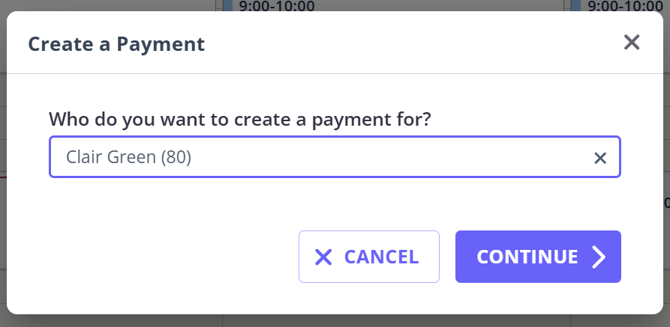
You will be redirected to the Billing > Payments > New Payment page of the selected profile to finalize the transaction.
- Adding New Clients - Detailed guide on adding clients.
- Making Appointments - Learn the different ways to book appointments.
- Creating and Managing Session Notes - How to create and manage client notes.
- Getting Started with Online Forms - Overview of creating and using forms.
- Creating, Editing, Printing and Emailing Invoices - Instructions for managing invoices.
- Adding and Managing Payments - Guide to recording and managing payments.