%20-%20120%20x%2044.svg)
You can add as many services to your Zanda account as you need. These services are attached to your appointments and are generally used for invoicing.
In this article:
- Add a New Service
- How to Search the Services List for Existing Services
- How to change the order of services on services lists in Zanda and the Client Portal
- Edit an Existing Service
- Activate/Deactivate a Service
- Frequently Asked Questions
- Related Articles
How to Add a New Service
1. Go to User Menu > Account Settings > Billing > Services.
2. Click '+Add Service'
3. Complete the new service form.
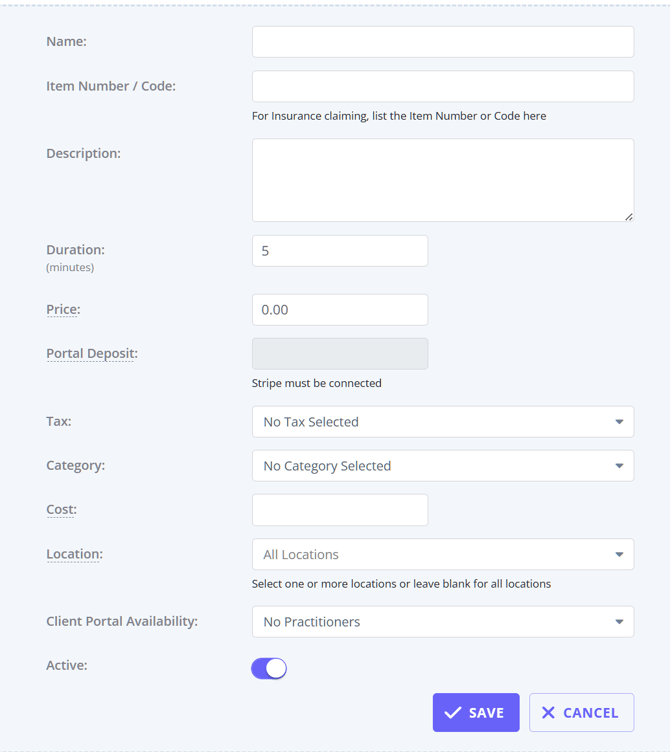
Here's what each field in the form above is for:
- Name: this is the title of the service that you will see in drop-down lists and on invoices.
- Item Number/Code: this is used to record a short piece of text to be used as a reference. This is an optional field. Please note that if submitting Medicare AU or DVA AU claims, this field should be used to record the relevant service code.
- Description: this is used to record a description of your service. This information will also appear
- on any invoices for that the service attached
- on your client portal if this service is made availble for online bookings, so you can use this to povide additional information about the srvice to your clients to help them make a decision at the time of booking
- Duration: used to record the duration of the service in minutes. This is also used to automatically set the length of new appointments booked with the service attached.
- Price: use this field to record the price of your service, ensuring that any tax is included in the figure (such as GST). This will appear on invoices where this service is attached, and will also show on the client portal if you're taking payments from clients.
- Portal Deposit: if some amount is set up here, clients will be required to pay it when booking this service online via the Client Portal. You must connect to Stripe to be able to use this feature.
- Tax: use this field to record whether or not tax applies to the service. The tax percentage can be set in User Menu > Account Settings > Billing > Tax Rates
- Category: if you have multiple services, you can divide them into a category. To add a new category, go to User Menu > Account Settings > Billing > Saleable Categories. (Clients booking online through the Booking Portal will be able to filter by Category - therefore only relevant if you are going to allow your clients to book appointments via the booking portal)
- Cost: This is an optional field you can use to record your business's cost of providing a service. Cost is not visible to clients and other payees.
- Location: Service will only be available to select for appointments and invoices at the selected locations in your Zanda account and on your Client Portal.
- Client Portal Availability: You can select practitioners who will be offering this service for online bookings on your client portal. Select No Practitioner, Some Practitioner, or All Practitioners.
- If you choose 'Some Practitioners' you will be able to select specific practitioners after you save the service template. Once you've click the 'Save' button, a modal will pop up. Iti will list all your practitioners and you will be able to enable a switch next to each practitioner who will be offering this service for online bookings on the Client Portal.
- These settings only restrict what clients see when booking online. Within a Zanda account, services cannot be restricted by practitioner, and your team can still assign any active service to any practitioner's appointment.
- Active: turn this switch off if you no longer wish to use this Service Template. This change will apply to future invoices only.
- Click 'Save' when ready.
All added services will be listed in User Menu > Account Settings > Billing > Services.
The Service List includes the following information:
- Service Name
- Item Number/Code
- Description
- Duration (minutes)
- Price $
- Tax
- Category
- Cost $ (ex. tax)
- Client Portal (visibility by calendars)
- Location (where made available)
- Active (Yes/No)
- Action (Edit/Activate)
☑️ Pro Tip:
To add a free service, such as a “Free Consultation”:
- go to User Menu > Account Settings > Billing > Services,
- then click '+Add Service'.
- Fill out the service form,
- set the price to $0.00,
- and select Tax Exempt.
How to Search the Services List for Existing Services
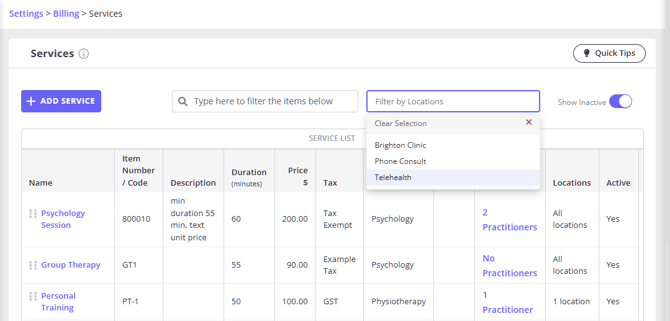
When you go to User Menu > Account Settings > Billing > Services you will see the full list of your active service templates.
If you need to quickly find a specific service or a group of services, use the provided filters.
1. The search bar with the prompt "Type here to filter the items below" specifically checks the text in these three columns in the Service List, so you can look up your services based on their
- Name (e.g., "Psychology Session")
- Item Number / Code (e.g., "80010")
- Description (e.g., "min duration 55 min...")
2. The second available filter allows you to search services by Locations.
3. You can also turn on the Show Inactive switch to see all inactive service templates.
How to change the order of services on services lists in Zanda and the Client Portal
The order of active services in User Menu > Account Settings > Billing > Services controls the order users see services in dropdown lists in Zanda and clients see when booking through the Client Portal.- Go to User Menu > Account Settings > Billing > Services.
- Find the active service you want to move.
- Drag the service into the preferred position in the Services list.
💡 Tip: The Client Portal Availability setting controls which practitioners can offer a service online. The Services list order controls where available services appear to clients during online booking.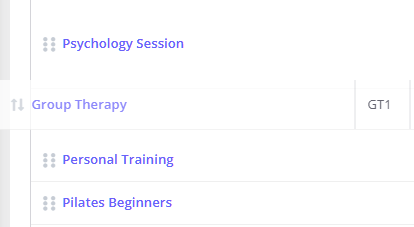
How To Edit an Existing Service
You can change the details of the service(s) you’ve added to your Zanda account. Here’s how:
1. Using the main menu sidebar, navigate to User Menu > Account Settings > Billing > Services.
2. Click the gear icon on the far right side of the service whose details you’d like to change.
3. Click ' Edit'.
4. The service template form will open and you will be able to edit its fields as needed, then save again. When saving an existing service, Zanda asks whether you want to update all future-dated invoices. Choose Yes, update future invoices to copy the updated service details to active invoices dated after the current date, or decline the prompt to leave those invoice items unchanged.
Past and current invoice items keep the service details already saved on the invoice, including the Item Number/Code, service name, description, tax, price, and cost. To change one of those invoice records, edit the invoice item directly.
How To Deactivate/Activate a Service
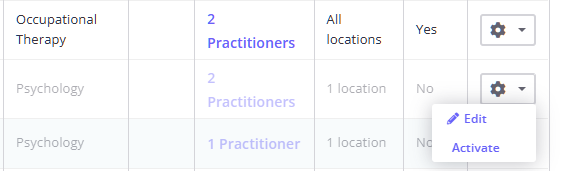
You can deactivate a service in your Zanda account. Here’s how:- Using the left-hand menu on Zanda, navigate to User Menu > Account Settings > Billing > Services.
- Click the gear icon on the far right side of the service you’d like to disable and click ' Deactivate'.
- Click 'OK' to confirm.
Once a service is deactivated, it won’t show up in the Services List inside appointments, invoices and the Client Portal.
When necessary, you can reactivate a deactivated service. Here’s how:
- Toggle the 'Show Inactive' switch on the top-right corner of the Services page. This will show you a greyed-out list of deactivated services.
- Click on the gear icon on the far right corner of the service you’d like to re-enable.
- Click ' Activate'.
Frequently Asked Questions
❓ Will changing a service item code update invoice history?
Changing a service template updates future-dated invoices only when you choose Yes, update future invoices after saving the service. Past and current invoices keep the Item Number/Code and other service details already saved on each invoice item, so edit the invoice item directly if a historical invoice needs correction.
❓ Can I change a service price from a certain date?
For a planned price change, update the service price when you are ready for the new price to apply. Service prices take effect from the saved service details, rather than from a scheduled future start date.
When you save changes to an existing service, Zanda asks whether you want to update existing future-dated invoices with the new service details. Choose to apply the change if those future invoices should use the new price, or decline if already generated invoices should stay unchanged.
Can I charge different fees for the same service, such as after-hours or clinician-specific fees?
Yes. Create a separate service template for each fee you need, because each service template has one default Price that is used when the service is added to invoices and shown on the Client Portal when payments are enabled.
For example, you might create separate services for a standard appointment, an after-hours appointment, or the same appointment delivered by a clinician with a different fee. Use clear service names so your team can select the right option when booking or invoicing.
If the different fee should only appear for specific online bookings, use Client Portal Availability to choose No Practitioners, Some Practitioners, or All Practitioners for that service. These settings control which practitioners can offer the service through the Client Portal. Internally, your team can still select any active service when creating appointments and invoices.
Can I export all services from Settings > Billing > Services into Excel?
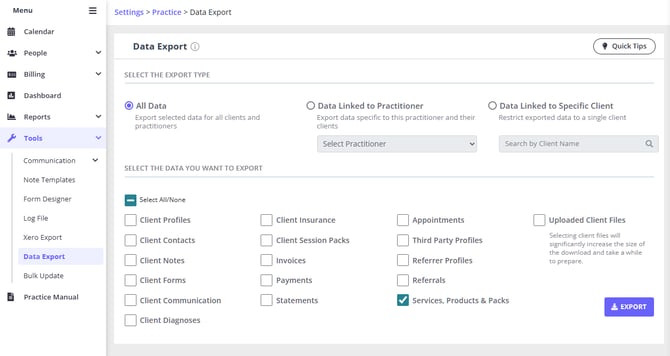
Yes. To export a complete list of your configured services, use the Data Export tool rather than a financial report. Financial reports show services, products, or session packs that have been sold or invoiced in the date range you choose, while Data Export includes the configured services in your account.
- Go to Tools > Data Export.
- Select All Data.
- In the data selection grid, select Services, Products & Packs.
- Click Export.
- When the export is ready, download the ZIP file and open Services and Products.csv in Excel or a similar spreadsheet program.
The prepared export is available from the Download List for 72 hours, and the export history is shown there for 14 days.
❓ How do I bill a service by quantity or units?
Create the service with the standard price for one billable unit, then update the Qty field on the invoice line when you invoice the appointment or sale. Zanda multiplies the service price by the quantity on the invoice item, so a service priced per 30-minute unit can be invoiced with Qty 2 when two units were provided.
Use session packs when you need to track a client's approved sessions, hours, or budget across appointments. Session packs help you monitor how much of an allowance has been used, while the invoice line Qty controls the quantity charged on a specific invoice.
How do I bill a service by quantity or units?
Create the service with the standard price for one billable unit, then update the Qty field on the invoice line when you invoice the appointment or sale. Zanda multiplies the service price by the quantity on the invoice item, so a service priced per 30-minute unit can be invoiced with Qty 2 when two units were provided.
Use session packs when you need to track a client's approved sessions, hours, or budget across appointments. Session packs help you monitor how much of an allowance has been used, while the invoice line Qty controls the quantity charged on a specific invoice.
Related Articles
- Setting Up Available Services and Times on Client Portal - Choose which services each practitioner can offer for online bookings.
- How Can I Limit Services and Products By Locations? - Limit services to selected locations for appointments, invoices, and Client Portal bookings.
- Exporting Your Data - Learn how to use Data Export and download exported CSV files.
- Setting Up Session Pack Templates - Create session pack templates for tracking sessions, hours, or approved budgets.