%20-%20120%20x%2044.svg)
You're able to customize your client setup and invoices to create superbills in Zanda for insurance claims.
In this article:
- Entering your NPI number
- Adding referring provider information
- Adding patient insurance information
- Recording diagnosis (ICD-10/DSM Code) for patients
- Recording procedures and descriptions (CPT)
- Create an Invoice for the service provided
- Creating a Superbill
- Frequently Asked Questions
- Related Articles
Entering your provider NPI number
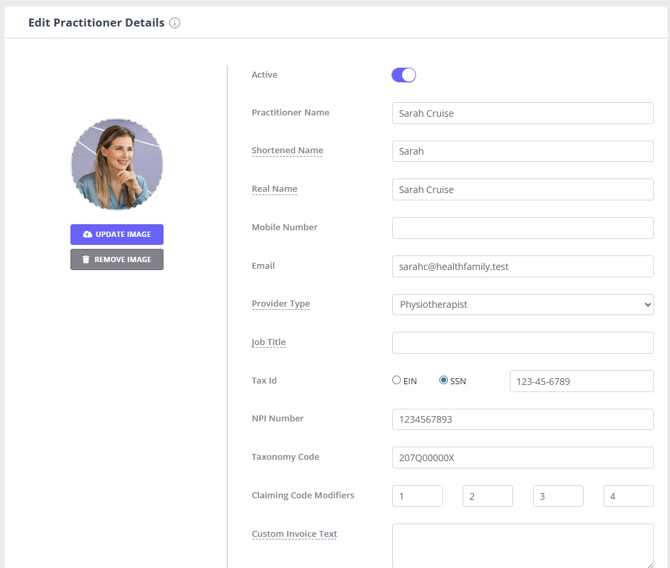
An NPI number can be added to a practitioner easily by following the steps outlined below.
- Navigate to User Menu > Account Settings > Team > Practitioners.
- Select the practitioner that you're wanting to add the NPI number to.
- Enter the NPI number into the NPI Number field; this will populate the respective field in the online claims and CMS-1500 forms
- The NPI number entered in the 'NPI Number' field in practitioners' profiles will appear below the practitioner name on all invoices and superbills when printed or downloaded.
- Click Save.
Adding referring provider information
Referring provider information can be easily displayed on invoices by following the steps in our article on adding and editing referrals.
Adding patient insurance information
Patient insurance information can be added by using Zanda insurance functionality.
Clients can provide their insurance information via Zanda online forms. Learn here how.
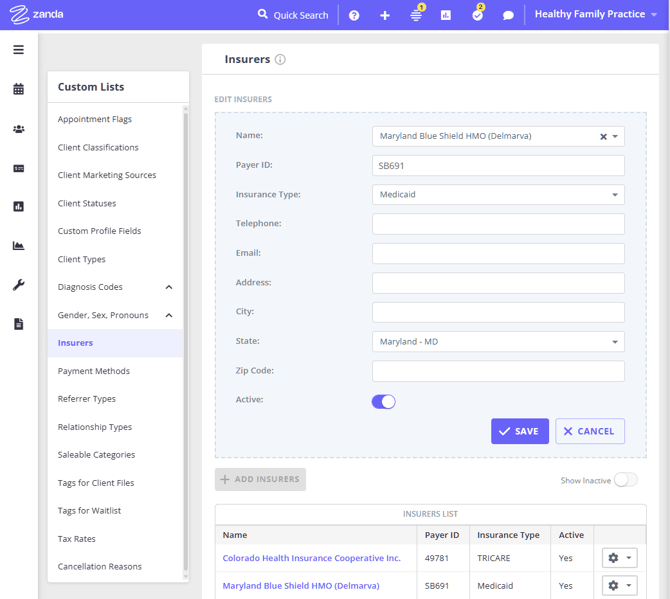
- To add new insurers manually:
- Navigate to User Menu > Account Settings > Payments > Insurers > + Add Insurers.
- Search the insurance company name or free type, then select the name from the suggested list.
- Enter they payer ID.
- Select the insurance type.
- Fill out other fields as necessary and save the changes.
- Use the Actions tab to deactivate an insurer when needed, to remove them from the insurers list.
- You will be able to activate an inactive insurer at any time.
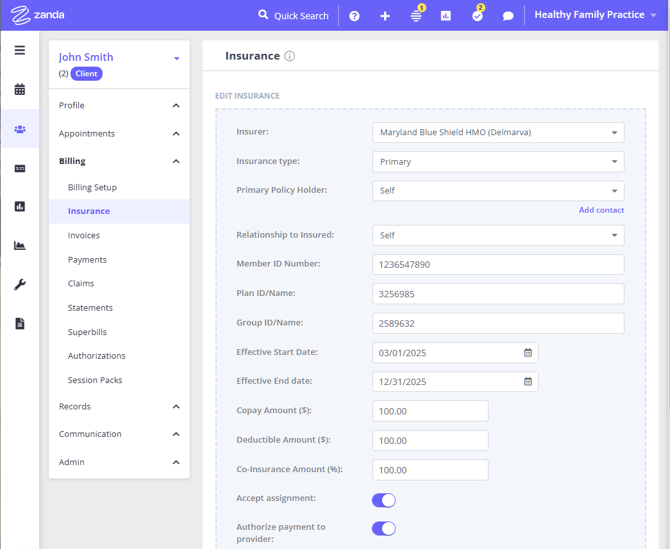
- You can then use this insurer to add policy numbers or insurance numbers to clients' profiles. To do this:
1. Navigate to a Client Profile > Billing > Insurance and click +Add Insurance at the top.
2. Complete the insurance form.
3. Save the changes.
Recording Diagnosis Codes for patients
Zanda enables you to use diagnosis codes as a tool to make records of diseases, disorders, symptoms, and other reasons for patient encounters, in client profiles and invoices.
Here is an article with step-by-step instructions for your convenience: Using Diagnosis Codes
Recording procedures and descriptions (CPT)
Procedures should be added as services with the relevant CPT code entered against each. New services can be added by:
- Navigating to User Menu > Account Settings > Billing > Services.
- Click + Add Service.
- Fill out the Form with Service information. The CPT code will go in the Item Number/Code field. (i.e. "99211-15"), then the name of the service would be New Patient Visit.
- Click Save.

This will then be recorded on each invoice that the Service is selected.
Create an Invoice for the service provided
An invoice should be created for each visit from the patient.
There are steps on how invoices can be created in our article here on Creating Invoices.
Creating a Superbill
Once you've followed the steps above, you can now create a Superbill.
1. Open the client's profile and navigate to Billing > Superbills.
2. Click "+ New Superbill".
3. Select the date range for invoices and payments to be included in the superbill.
4. In the Payable By field, choose whose invoices and payments the superbill should cover: All, Self (the client), or a specific linked Contact or Third Party. Leave it on Self or All for a standard superbill; select a contact or third party when the superbill needs to cover one payer only.
5. Custom Text For Superbill is optional—anything you type here prints on the superbill, underneath the header.
6. Click 'Show Invoice and Payments'.
7. Untick any invoices or payments you don't want included.
8. Click 'Create Superbill'.
9. Under the Action menu to the right-hand side of the table click on the cog symbol.
10. Select 'Print' > Click 'Print' or download as a PDF file. Alternatively, email the superbill to the client.
Creating a superbill for one payer
Where a client's invoices are split between more than one payer—for example a child client whose separated parents are each billed for their own appointments—you can produce a superbill that covers only one of them.
This works off who each invoice is billed to, so set that up first: in the client's profile go to Billing > Billing Setup and set Bill To to the contact who is responsible for those invoices. Invoices raised while that setting is in place are billed to that contact. (See Creating Statements Billed to Contacts for how contacts and billing work together.)
Then, when you create the superbill, set Payable By to that contact. Zanda will show only:
- Invoice Items—invoices billed to that contact
- Payments allocated to invoices—payments made by that contact
The All payments received during the period section will be blank, so payments made by anyone else are not shown.
Because every invoice on the superbill is then billed to the same person, the Invoice To section at the top of the printed superbill shows that payer's name and address, so the insurer can see who the bill was payable by.
If the invoices were all billed to the client, the Payable By filter has nothing to separate them by. In that case set Payable By to All, click Show Invoice and Payments, and untick every invoice and payment that shouldn't appear. Check the All payments received during the period list carefully before you create the superbill—payments recorded against the client's profile are listed there, and you'll want to untick any that belong to another payer. Note that when invoices on a superbill are billed to a mix of payers, the Invoice To section falls back to the client's details rather than naming one payer.
Frequently Asked Questions
❓ Does the superbill show who made each payment?
The Payments allocated table on the printed superbill lists the date, invoice reference, payment method and amount—it doesn't have a column naming the payer for each line. Payer identity comes from the Invoice To section in the header instead: when every invoice included on the superbill is billed to the same contact or third party, that payer's name and address appear there. If you'd like to spell it out, add a line in the Custom Text For Superbill field when you create the superbill—that text prints on the document.
❓ Can I edit a superbill after I've created it?
The contents of a superbill are fixed once it's created. You can rename it, tick Referral to show the referrer, and print, download, email or delete it, but invoices and payments can't be added or removed afterwards. To change what's on it, delete the superbill and create a new one with the date range, Payable By selection and ticked items you want.
❓ Can I add a location code or Place of Service code to a superbill?
Zanda does not add a separate location code or Place of Service code field to printed or downloaded superbills. If you need the Place of Service code for a CMS-1500 claim form, set the Insured Place of Service on the location linked to the invoice in Account Settings > Practice > Locations. That code populates the claim form's Place of Service field. If you only need a note to appear on the superbill, add it in the Custom Text For Superbill field when you create the superbill.
Related Articles
- Populating Claim Information (US) - Learn which invoice, practitioner, client, and location details populate CMS-1500 claim fields.
- Creating Statements Billed to Contacts - Set up a contact as the payer so invoices, statements, and superbills can be scoped to that person.
- Reference Guide To Superbills Layout - See what each section of a printed superbill shows, including Invoice To and Payments Allocated.