%20-%20120%20x%2044.svg)
In this article:
Incomplete Forms Automation Overview
Incomplete Forms automation helps your practice follow up with clients who still need to complete online forms. You can use it to automatically send an email or SMS reminder with a direct link to the client’s incomplete form, helping you collect important information before appointments and reduce manual follow-up for your team.
This automation is useful for reminding clients to complete intake forms, consent forms, registration forms, questionnaires, assessment forms, pre-appointment forms, or any other online forms your practice sends through Zanda. You can also create internal tasks for your team, such as calling a client who has not completed a required form.
You can trigger incomplete form reminders based on different timing rules. For example, you can send a reminder a set number of days before the client’s next appointment, before the form link expires, or after the form was created. You can also choose which form templates the automation applies to and filter by client status.
Use this article to set up automated email reminders, SMS reminders, and team tasks for incomplete forms, outstanding online forms, intake form follow-up, consent form reminders, form completion before appointments, expiring forms, forms created but not completed, and client form links.
Incomplete Forms automation is processed during the 2:00 PM (14:00) local time hour for each account. Zanda checks eligible forms against the conditions that are true at the time the automation is processed.
Important note about form links
Email and SMS templates used with Incomplete Forms automation must include the {IncompleteForm} merge field. This merge field adds the direct link to the client’s outstanding form or forms when the automation runs.
The {IncompleteForm} merge field only works with Incomplete Forms automation. It does not populate in manual messages, other automation types, or task actions.
{IncompleteForm} inserts into an SMS reminder may appear as a short zanda.link address instead of the full URL. It opens the same form. See Use Short Links in SMS Messages.
Setting up Incomplete Forms Automation
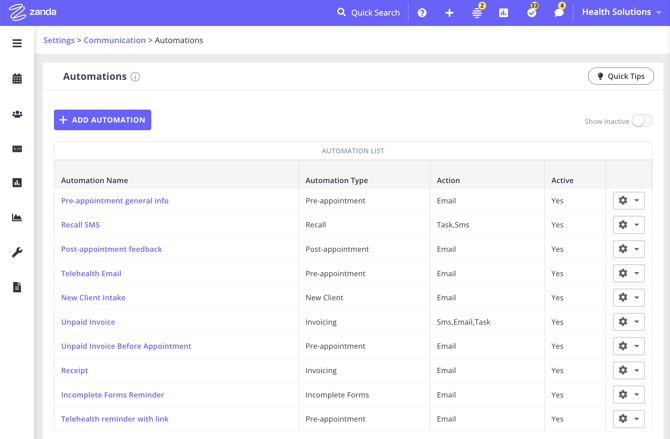
Here's how to create automations to remind clients about incomplete forms.
- Go to User Menu > Account Settings > Communication > Automations.
- Click the '+ Add Automation' button at the top of the page.
- Enter a descriptive name for your automation (e.g., "Incomplete Forms Reminder").
- Select the Automation type as 'Incomplete Forms'.
- Set the Conditions - they will determine when the automation is triggered. For the 'Incomplete Forms' automation, you can base the trigger on the client's next appointment date, the form's expiry date, or the date the form was created, and the client's status.
- Days before next appointment: select the number of days.
- This option triggers the automation a specific number of days before a client's upcoming appointment. For example, setting it to '2' will send a reminder two days before the appointment, ensuring the form is completed in time
- This will only trigger for non-cancelled appointments, ie. Pending, Arrived, Confirmed, or Completed.
- If a client has multiple future-dated appointments (e.g. a series of recurring appointments) a reminder will be sent for each appointment until the form is completed, or expires or no future appointments are left.
- Days before expiry: select the number of days.
- If your forms are configured with an expiry date, this condition allows you to send a reminder a specified number of days before the form link becomes invalid.
- Days after form created: select the number of days.
- This condition triggers the automation based on the number of days that have passed since the form was initially created and assigned to a client. This is useful for following up on forms regardless of any future appointment date.
- Select Form Template(s): After selecting one of the time-based conditions above, you must also specify which form template(s) the automation applies to. The automation will only be triggered if a client has an incomplete form from one of the templates you select here.
- You can select one or multiple form templates for a single automation, which means the automation will run if a client has an incomplete form for any of the selected templates.
- Client Status
- You can select multiple client statuses for the same automation. The status is pulled from the field on the client's profile.
- Days before next appointment: select the number of days.
- Set up the automation Actions. Choose email, SMS or Task as your automated actions. Select
- Set up communication templates to use with automation actions in Tools > Communication > Templates.
- You must use the {IncompleteForm} merge field in email and SMS communication templates for email and SMS actions. This merge field automatically inserts the direct link to a client’s incomplete form(s), but only when used inside an Incomplete Forms Automation. It won't work if used with the Task action.
- Use the Task action to set up other reminder types for your team, for example, to call clients who have incomplete forms.
- Turn the 'Active' switch to 'On' to activate your automation.
- Once you have configured all your actions, click 'Save' to create the automation.
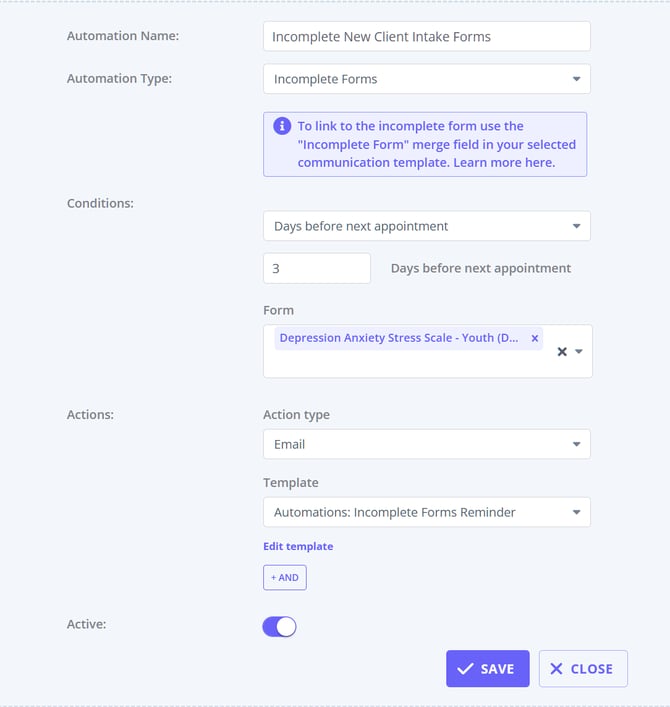
Your new Incomplete Forms automation is now active and will automatically send reminders with links to incomplete forms or create tasks for your team members linked to clients with outstanding forms based on the conditions you’ve set. This ensures you’re always prepared for upcoming appointments without the need for manual follow-ups.
Important Notes About Communication Templates:
- When creating communication templates to use with this automation actions, make sure to use the {IncompleteForm} dynamic merge field - it automatically inserts the direct link to a client’s outstanding form(s), but only when used inside an Incomplete Forms Automation.
• It pulls in the exact form links that match the automation’s conditions (e.g., template selected, form not completed, timing rules).
• It allows clients to open their pending form directly from the SMS or email they receive.
• It will not populate in any other type of automation or message, including manual emails or non–form-related automations.If you preview a message and see the merge field appear blank, this is expected — the field only fills at the moment the Incomplete Forms Automation runs and only when there is a valid incomplete form for that client.
-
When you select an email or SMS template that includes a form link, Zanda will automatically create a draft form at the time of selection. This occurs even if you later change the communication template or do not use it when sending. This behaviour applies when sending files, forms, notes, or invoices via email, as well as when using the standard email or SMS options within a client profile. If you select a communication template and then change it, please ensure that any draft forms created in the process are deleted if not needed. This will help prevent incomplete form automations from being triggered unintentionally.
❓ Can multiple incomplete form links appear as a list in an email?
In email messages, multiple form links display as comma-separated form-name links rather than as a bulleted list. In SMS messages, multiple incomplete form URLs display on separate lines.
The merge field output is fixed by message type, so changing the surrounding email template format will not turn multiple email links into a list. If a different email layout would help your practice, submit the request through the Customer Ideas Portal.
Sending All Automation Communications to Clients' Contacts
You can send automations communications, such as pre-appointment messages, follow-ups, invoices reminders, recalls and so on, directly to a client’s contact.
How It Works
- Open the relevant client Profile > Contacts tab and select their connected contact, or add the contact who will be receiving their automation communication messages.
- Each connected contact profile includes a Send all automation communication toggle. You’ll find this setting just below the Send reminders toggle in the connected contact’s settings. Turn this toggle on.
- Save the changes. When this option is turned on, all automated messages that would normally go to the client will also be sent to that contact. This includes any automations triggered by reminders, invoices, recalls, or similar workflows.
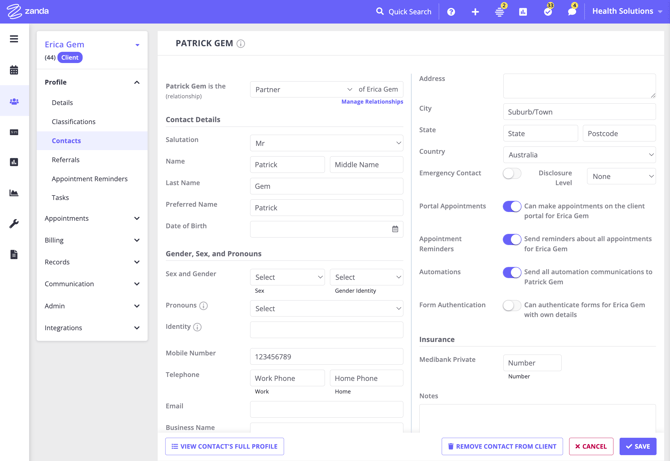
Example
If a parent, guardian, or carer is listed as a contact and the Send all automation communication option is enabled, they will receive the same automated messages as the client.
💡 Tip: Before enabling this setting, make sure you have the contact’s consent to receive communications on behalf of the client. This helps maintain privacy and ensures compliance with communication and data protection standards.
Who Receives an Incomplete Form Reminder
An Incomplete Forms reminder is sent to the profile the incomplete form is saved against — not to whoever the original form email or SMS happened to be addressed to.
A form is saved against the profile you generate the message from. If you open a client's profile and send a communication template containing a form merge field, the form is created on that client's profile, even when you choose a contact such as a parent, carer, or school as the recipient of that one message. When the reminder runs later, it goes to the client the form belongs to.
If a connected contact has Send all automation communication turned on, that contact receives a copy of the reminder as well. This is in addition to the profile the form belongs to, not instead of it.
Sending different forms to different people
If one set of forms needs to be completed by a school or teacher and another set by a parent, generate each form from the profile of the person who has to complete it:
- Make sure the person or organization has their own profile in Zanda — a connected contact on the client, or a third party profile. See Adding Client Contacts and Understanding Third Party Profiles.
- Open that profile and go to Communication > New Email or New SMS.
- Select the communication template that contains the merge field for the form they need to complete, then send it.
The form is created on that profile, so any Incomplete Forms reminder for it returns to that person. Repeat from the parent's profile for the forms the parent needs to complete.
On a third party profile you will not see Records > Forms. You can still generate a form there from Admin > Admin Forms, or by sending a communication template that contains a form merge field from Communication > New Email/New SMS.
Two conditions to check when forms sit on contact or third party profiles:
- Days before next appointment will not trigger for these forms. Appointments are booked on client profiles, so a form saved against a contact or third party profile has no next appointment to count back from. Use Days after form created or Days before expiry for these reminders instead.
- Client Status is read from the profile the form is saved against. If your automation filters by client status, the contact or third party profile needs a matching status on it, otherwise the form is skipped. Client status is optional when a profile is created, so it may be blank.
Frequently Asked Questions
❓ If I select specific form templates, will the automation only send to clients with those forms incomplete?
Yes. The automation checks for active, incomplete forms from the form templates you select. If you select more than one form template, the automation can run when a client has an incomplete form from any selected template, as long as the timing and client status conditions also match.
❓ What happens if a client has more than one incomplete form?
Use the {IncompleteForm} merge field in your email or SMS template. When the automation runs, Zanda adds links for the matching incomplete form or forms connected to that client. Email templates display named form links, and SMS templates display the form URLs.
❓ Will current clients with older draft forms receive a reminder before their next appointment?
They can, if their form is still active and incomplete, the form template matches the automation, and their next eligible appointment matches the Days before next appointment timing on the day the automation is processed. For example, if the automation is set to 3 days before the next appointment, Zanda checks for clients whose eligible appointment is 3 days away during that account's 2:00 PM local processing hour. The automation does not catch up for a timing window that has already passed.
To avoid sending new-client form reminders to current clients, use form templates and client statuses that match your intended group. If current clients may also have drafts for the same templates, review or expire those draft forms before activating the automation.
❓ Can I target first appointments or new clients with Incomplete Forms automation?
Incomplete Forms automation conditions are based on the trigger timing, selected form templates, and client status. The automation does not include a built-in first appointment or client type condition. For new-client workflows, choose form templates used for onboarding and, if your account uses a dedicated new-client status, select that status as an additional condition.
❓ We send one set of forms to a teacher and another set to a parent. Does the reminder go back to the person each form was sent to?
It goes to the profile each form is saved against, and a form is saved against the profile you generated the message from. Sending from the client's profile and choosing the teacher as the recipient still saves the form on the client, so the reminder goes to the client. To have each reminder return to the right person, generate each form from that person's own profile — see Who Receives an Incomplete Form Reminder above. If a connected contact has Send all automation communication enabled, they also receive a copy of every reminder.
❓ Why is the same form appearing more than once in an Incomplete Forms automation email?
The {IncompleteForm} merge field can include each matching incomplete draft form for the client. If the same form appears more than once, open the client's profile and review Records > Forms and Admin > Admin Forms for multiple incomplete drafts of the same form, then delete any drafts the client should not complete before you retest the automation.
❓ Can I control the order of forms added by the {IncompleteForm} merge field?
No. The order of forms added by {IncompleteForm} is not configurable, so the merge field should not be used when forms must appear in a specific sequence. If the order matters for your workflow, send separate targeted reminders for the forms that need extra context, or include wording in the message that tells clients which form to complete first.
❓ Should I create more than one Incomplete Forms automation for follow-up reminders?
Create a separate automation for each reminder timing you want to use. For example, a reminder set to Days before next appointment = 4 runs when the next appointment is four days away; if you also want a two-day follow-up, create another Incomplete Forms automation with Days before next appointment = 2. Each automation only includes forms that still match its conditions, so completed or expired forms are left out of later reminders.
Related Articles
- Communication Templates for Zanda Automations - Copy email and SMS template examples that include the
{IncompleteForm}merge field. - Sending Online Forms to Clients - Learn how to send forms manually and manage incomplete form reminders.
- Setting Up New Client Automations - Learn how new-client automations work for onboarding communication.
- Use Short Links in SMS Messages - See why the
{IncompleteForm}link may appear as a short zanda.link address in SMS.