%20-%20120%20x%2044.svg)
Overview
When the Client Files feature is enabled on your portal, your practice and your clients can securely exchange documents without email or external file-sharing tools.
- Practitioners can choose which files from a client’s profile are visible on the portal
- Clients can upload documents directly through the portal, which are saved to their profile for review
In this article
- Enable client files on the Client Portal
- Understand the new file options
- Share a file with a client
- Client experience on the Client Portal
- See which files are shared at a glance
- When a client uploads a file via the portal
- Files uploaded via online forms
- Frequently Asked Questions
- Related articles
Enable Client Files on the Client Portal
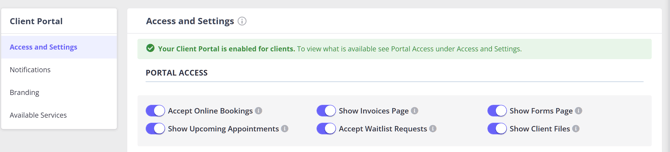
Steps
- Go to User Menu > Account Settings > Schedule > Client Portal > Access and Settings
- Locate the Show Client Files toggle
- Switch the toggle ON and save
Once enabled, clients can:
- View files you choose to share
- Upload their own documents via the portal
Uploaded files will automatically appear in the client’s profile.
After you save this setting, refresh or reopen Records > Files or Admin > Admin Files in the client profile. The Show to Client on Portal option and portal-related columns load when the Files page opens, so they may not appear on a page that was already open before you enabled Client Files.
Tip: You can disable access at any time by switching the toggle OFF and saving.
Understanding the new file options
When enabled, each client file includes additional options to control visibility and classification.
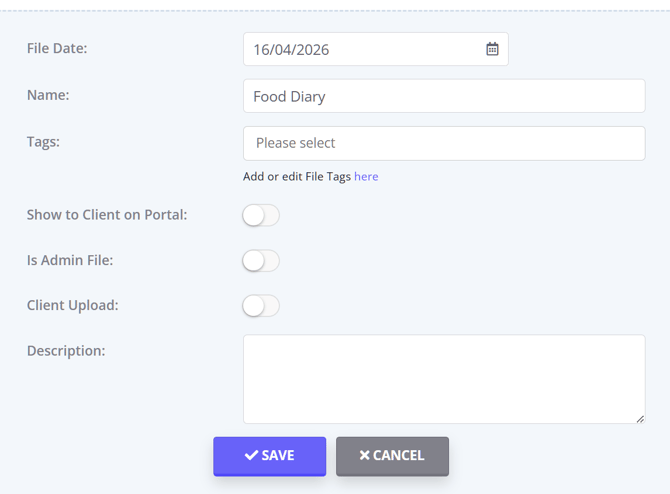
If these options are not visible after Client Files has been enabled and saved, refresh the file list or leave the client profile and open it again.
Show to Client on Portal
- ON → File is visible to the client under Your Documents
- OFF → File remains internal
This is controlled manually for each file.
Is Admin File
Defines whether the file is administrative or clinical:
- ON → Appears under Admin Files
- OFF → Treated as a clinical file and appears under Records > Files
Important:
Files uploaded by clients are clinical by default. You can switch on Is Admin File if needed.
Client Upload
Indicates the file was uploaded by the client via:
- The portal, or
- An online form
This is system-managed and cannot be edited.
A Client Upload tag is automatically created and applied.
Share a file with a client
Steps
- Open the client profile
- Go to:
- Records > Files, or
- Admin > Admin Files
- Upload a file
- Once added, in the Actions column click the gear icon and select 'Edit'
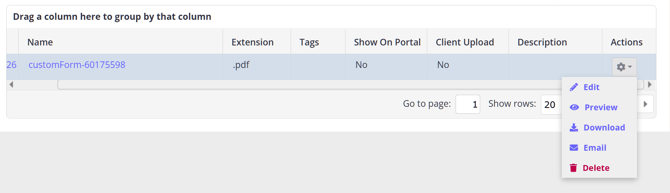
- Switch Show to Client on Portal to ON
- Save
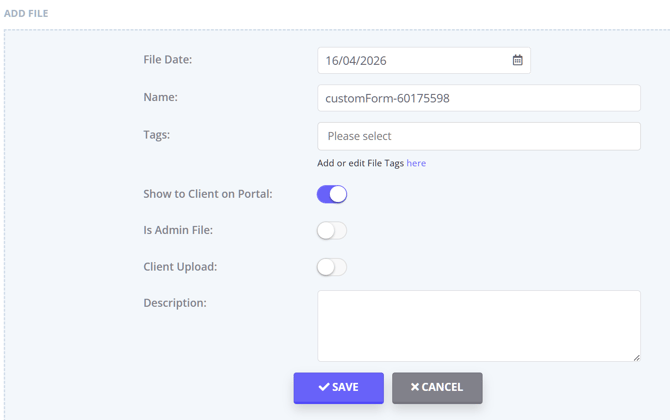
The file will appear in the client’s My Documents section.
Tip: To stop sharing, switch the toggle OFF and save.
If you need to share a recording, upload it in a supported format. For large recordings or video files, compress the recording into a ZIP file before uploading.
Client Experience on the Client Portal
A client needs to log in to their client portal profile to access the My Documents tab.
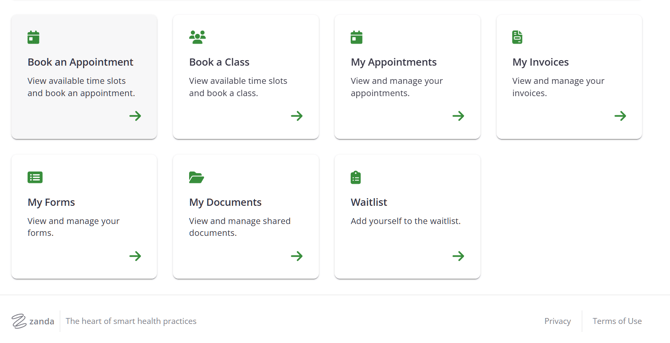
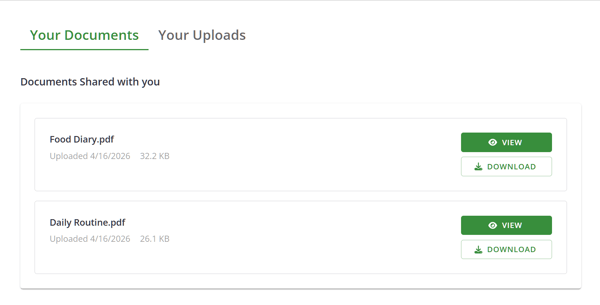
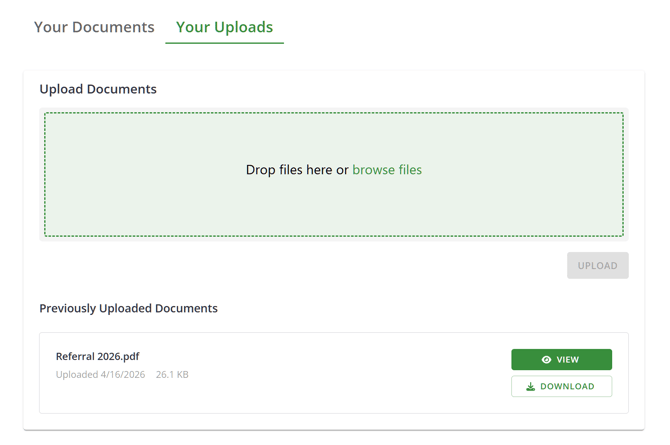
When a client clicks the My Documents tab on their client portal home page, they will see two folders: Your Documents and Your Uploads.
-
Your documents folder will show documents shared with a client by their practitioner.
-
Your uploads folder will show the field to upload files and the list of files the client uploaded through the Client Portal or through an online form. They can also view and download files they have previously shared with the practice.
See which files are shared at a glance
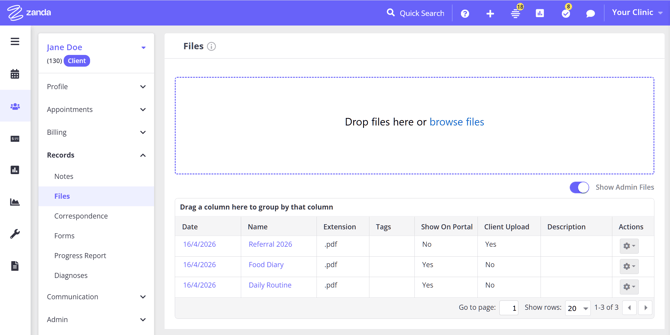
When enabled, two additional columns appear in the file list:
| Column | Description |
|---|---|
| Show on Portal | Displays “Yes” if shared with the client |
| Client Upload | Displays “Yes” if uploaded by the client |
These help you quickly review visibility and file origin.
When a client uploads a file via the portal
When a client uploads a file:
- It is automatically added to Records > Files
- It is marked as a clinical file by default
- It is labelled Client Upload
- The client’s primary practitioner is notified via Practice Hive
Note: Only users linked to the client’s primary practitioner will see this notification.
Files uploaded via online forms
If a client uploads files through a form:
- Files remain attached to the form
- Files are added to Records > Files
- Files are marked as Client Upload
- Files are visible on the portal by default
- Files are marked as Is Admin File if submitted via an admin form
For more details, see: Using the Form Designer
Frequently Asked Questions
❓ Can I use the Client Portal to share therapy resources or handouts with a client or family member?
You can use Client Files to share documents with the client through the Client Portal. Enable Show Client Files, upload the resource to the client profile, switch Show to Client on Portal to ON, and ask the client to open My Documents > Your Documents. Clients can upload documents back to the practice from My Documents > Your Uploads.
If a parent, guardian, partner, or other contact needs to book appointments on behalf of the client, set them up as a contact with Portal Appointments enabled. Contact booking is managed separately from Client Files.
❓ Can files shared through the Client Portal be protected with a PIN or password?
Client Portal files are protected through the client's portal login and the file-level Show to Client on Portal visibility setting. There is no extra PIN or password setting for individual files.
To stop sharing a file, open the file from Records > Files or Admin > Admin Files, select Edit from the gear icon, switch Show to Client on Portal to OFF, and save.
❓ Can portal document upload notifications go to an admin email instead of the client's primary practitioner?
No. Portal document upload notifications are Practice Hive file notifications, so they are sent to users linked to the client's primary practitioner. To help an admin user monitor portal uploads, make sure they are linked to the relevant practitioner profile and have Enable File Notifications switched on in Practice Hive settings.
Form Designer notification settings are separate. The Who to notify when this form is submitted? setting can email the client's primary practitioner and/or specific email addresses when an online form is submitted, but it does not redirect notifications for files clients upload directly through the Client Portal.