%20-%20120%20x%2044.svg)
Zanda provides several features to help you distribute, track, and follow up on online forms efficiently. This guide walks you through the recommended workflows to make this process easy and compliant.
In this article:
- Step 1 — Create or Update Your Online Form Template
- Step 2 — Send the New Form to Clients
- Step 3 — Automate Follow-Ups for Clients Who Haven’t Completed the Form
- Step 4 — Allow Contacts (e.g., Parents/Carers) to Receive the Form Too
- Step 5 — Track Which Clients Have Completed the New Form
- Recommended Workflow Summary
- Frequently Asked Questions
Step 1 — Create or Update Your Online Form Template
Online forms templates in Zanda are created and managed in Tools > Form Designer. You can find a detailed guide here. We also provide a collection of ready-to-go online form templates in Tools > Form Designer > Templates Library, which you can copy to your Zanda account and edit to suit your workflows.
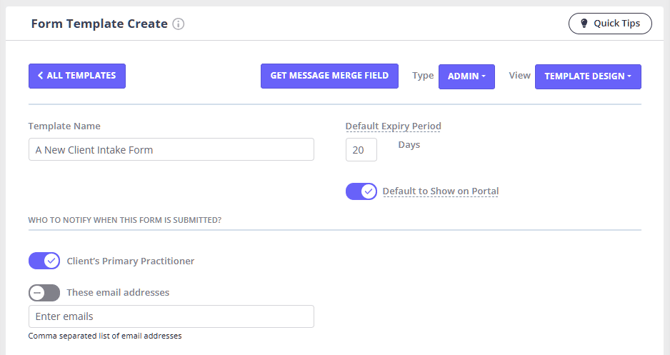
- Each online form template you'll add or create in your Zanda account will have its own merge field which you'll be able to use to embed in your communication templates. You can copy it from a template directly, but it is not necessary.
- You can also configure an expiry period for each form template. This setting is part of the incomplete forms automation options, allowing you to track form completion based on how many days remain before a form expires.
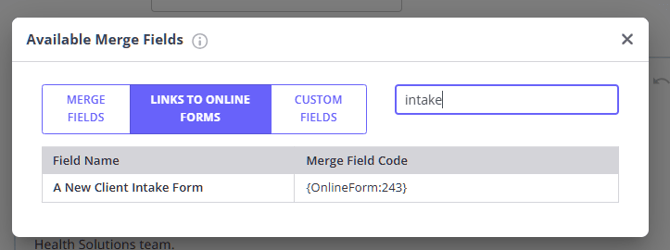
When you'll be working on your communication template(s), you'll be able to copy your online form merge fields directly from the Available Merge Fields list provided with each communication template:
Step 2 — Send the New Form to Clients
Option A: Send to all clients using Bulk Email
Best if you need to notify every client quickly.
How to send your form using Bulk Communication
-
Go to Tools > Communication > Templates
-
Click + New Template
-
Choose Email
-
Add your message and embed your online form
-
Save
-
Go to Tools → Communication → Bulk Send
-
Select your new template
-
Choose recipients (you can filter by status if needed)
-
Click Send Message
💡 Tip: You can send the form only to clients who are opted-in for marketing communication, if needed.
Option B: Assign the consent form to individual clients
If you prefer to deliver the form one-by-one:
-
Open the client profile
-
Go to Forms
-
Click + New Form
-
Select your online form template
-
Save the draft and copy the form link
-
Send the form link via email or SMS
Option C: Send a new form using New Client or Pre-appointment Automation
You can automate generating and sending the forms to your clients using Zanda automations:
- Embed your forms to communication templates.
- Go to User Menu > Account Settings > Communication > Automations
- Create new automations to send your online to clients
- use New Client or Pre-appointment automations and their available conditions to set up your workflows
- use availble automation conditions to target the automations
Step 3 — Automate Follow-Ups for Clients Who Haven’t Completed the Form
The Incomplete Forms Automation helps you remind clients automatically — ideal when your whole caseload needs to complete a new form.
How to set up an automation
-
Go to User Menu > Account Settings > Communication →>Automations
-
Click + Add Automation
-
Select Incomplete Forms as the automation type
-
Choose your trigger condition:
-
Days before next appointment
-
Days before form expiry
-
Days after form created
-
-
Select your updated consent form template
-
Add your action:
-
Email or SMS reminder
-
Or create a task for your team
-
-
Activate the automation
-
Click Save
💡 Include the {IncompleteForm} merge field in your reminder template so clients receive a direct link to complete their consent form.

Step 4 — Allow Contacts (e.g., Parents/Carers) to Receive the Form Too
If you work with minors or shared-care arrangements:
-
Open the client profile > Contacts tab
-
Select the relevant contact
-
Turn on Send all automation communication
- Turn On Can authenticate forms for [Client Name] with own details (optionally, if you require clients to authenticate to access their forms)
-
Save
This ensures both the client and the authorized contact receive consent-form reminders.
Step 5 — Track Which Clients Have Completed the New Form
Use the Client Forms Report to monitor progress.
How to run the report
-
Go to Reports > Clients > Client Forms
-
Filter by:
-
Form name
-
Form status (draft or completed)
-
Form creation date
-
Assigned practitioner
-
-
Review which clients:
-
Have the new form
-
Have completed it
-
Still have it pending
-
You can click the link in the Actions column to jump straight into a client’s Forms page.
Recommended Workflow Summary
| Task | Best Zanda Feature |
|---|---|
| Notify all clients about the new consent form | Bulk Email |
| Collect signatures | Client Forms |
| Send reminders automatically | Incomplete Forms Automation |
| Monitor completion | Client Forms Report |
Need Help Setting This Up?
If you’d like help choosing the best workflow for your practice, feel free to contact our support team at support@zandahealth.com. We’re always happy to walk you through it.
Frequently Asked Questions
❓ Can I add a Google Form to Zanda?
For forms you want to send, track, and store against a client profile, create the form in Tools > Form Designer and send it as a Zanda online form. Each online form template has its own merge field, and communication templates include a Links to Online Forms option so you can add the correct form link to email and SMS messages.
If you have already created a form in Google Forms, use it as a reference when building the Zanda online form template. This keeps the form workflow inside Zanda, where you can create a draft form for an individual client, copy the client-specific portal form link, show the form on the Portal Forms Page when enabled, send the form link by email or SMS, and track draft and completed forms in the Client Forms Report.